MK SYSTEM / DOCUMENTATION
MK Studio Homepage Movies section
MK Studio Homepage Movies settings define which films a section shows and how their cards are displayed.
Location: WordPress admin → MK Studio → Homepage → a section with Type: Movies. Select and save the type first if it was previously another type. Keep Enabled on and use Save Homepage Settings after editing. This section queries published MovieKit movies; a matching dataset is needed to see cards. For mode and other section types, see Homepage.
Basic
| Control | Values and initial value | Effect |
|---|---|---|
| Title | Text; “Latest Movies” initially | Section heading shown above the movie cards. |
| Count | 1–24; 8 initially | Maximum movies requested. Fewer appear if the query matches fewer published entries. |
| Layout | Card Grid (initial), Poster Grid, List, Carousel (posters) | Chooses the movie card layout. |
| Columns | 2, 3 (initial), 4, 5 | Grid columns; ignored for List. Carousel uses its own responsive visible-poster controls. |
| Image source | Auto (best available) initially; MovieKit Poster, MovieKit Backdrop, WordPress Featured Image | Which image to request for each card. Supply the corresponding movie image when choosing a fixed source. |
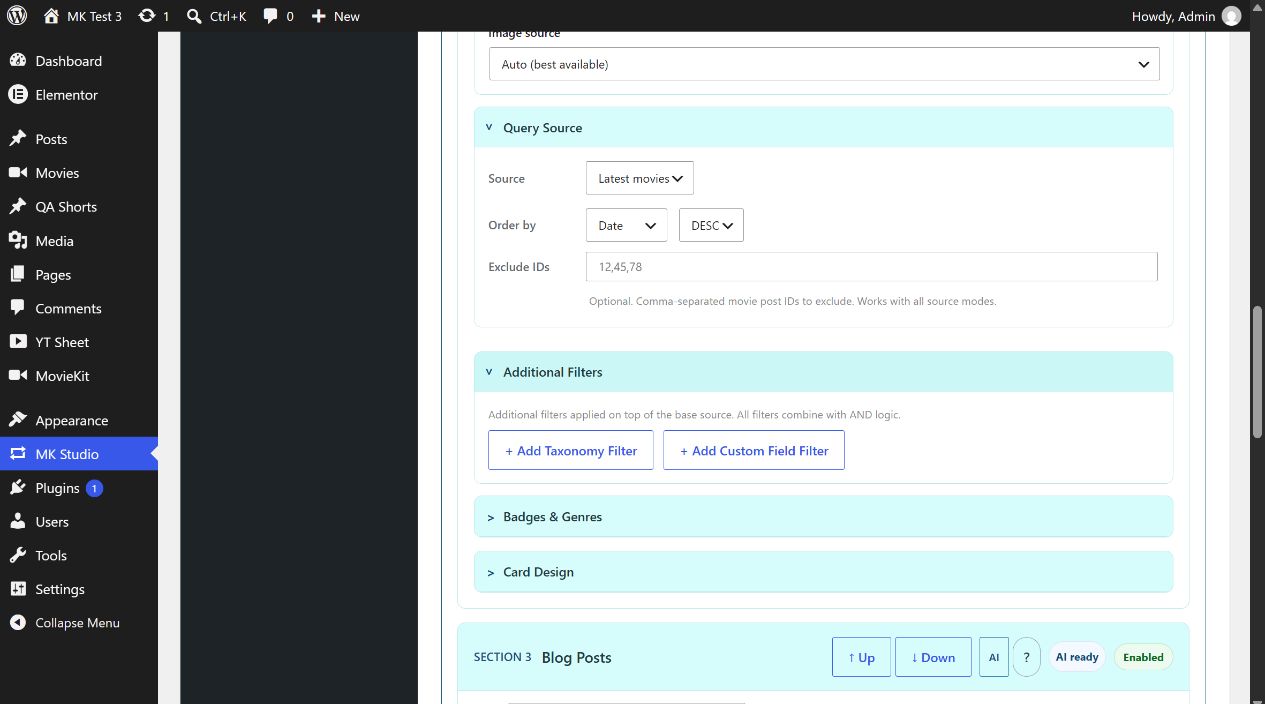
Query Source
Source starts at Latest movies. Other choices are Taxonomy, Custom field and Manual IDs. The form reveals source-specific fields immediately when you change this selector. The admin offers MovieKit taxonomies registered on the site; select a taxonomy and then one of its existing terms. If no term is selected, the intended narrowing condition is absent, so check the result before relying on it.
| Source | Fields shown | How to use it |
|---|---|---|
| Latest movies | No extra source field | Use Order by and direction below to determine the sequence. |
| Taxonomy | Taxonomy and the corresponding term selector | For example, select Movie Genres → Drama after assigning Drama to the relevant published movies. |
| Custom field | Key mode, Field or Manual key, Compare, data type and Value | Choose a known MovieKit field or enter a meta key. Comparisons: =, !=, >, >=, <, <=, LIKE, NOT LIKE, EXISTS, NOT EXISTS. Data types: CHAR (initial), NUMERIC, DATE. EXISTS and NOT EXISTS need no Value. Match the data type to the stored field. |
| Manual IDs | Include IDs | Enter comma-separated numeric MovieKit post IDs. Only those movie entries are eligible. |
Order by offers Date (initial), Title, Year or Random; the direction is DESC initially or ASC. Exclude IDs accepts comma-separated movie post IDs in every source mode. Avoid excluding all included IDs. If a query returns no cards, first verify published movie entries and the selected taxonomy term, meta key/value or IDs.
Additional Filters
Click + Add Taxonomy Filter or + Add Custom Field Filter to append a row. These buttons submit and save the form. All additional rows combine with the base source using AND logic. A taxonomy row has Taxonomy and Term. A custom-field row has Known/Manual key mode, the field/key, Compare, data type and Value; it uses the same comparison choices as the base custom-field source. Click Remove on a row to delete that condition; this also submits the form. A wrong or overly narrow combination can yield zero movies.
Badges & Genres
Rating badge is on initially; Runtime badge and Rated badge (PG-13, R…) are off. Each badge has its own position selector: Top Left, Top Right (initial), Bottom Left or Bottom Right. Genre line is off initially. When enabled, set Max genres to 1–5 (2 initially) and Genre position to Below image (initial) or Over image. Badges and genre text depend on the corresponding movie metadata; an enabled badge cannot display missing data.
Card Design
Card gap is 24 px initially; choices are 0, 4, 8, 12, 16, 20, 24, 32, 40, 56, 64 and 80 px. Content spacing is 8 px initially; choices are 0, 4, 8, 12, 16, 20, 24, 32 and 40 px. Title position is Below image initially; choose None or Over image if needed. Save and inspect the grid at desktop and mobile widths.
Example: a three-card latest-movies row
- Publish at least three MovieKit movies with card images.
- Set Title to “Featured movies”, Count to 3, Layout to Card Grid, Columns to 3 and Image source to Auto.
- Leave Query Source at Latest movies, Order by Date and direction DESC. Keep Rating badge on if rating data exists.
- Save Homepage Settings, open the front page and check card count, order, images and links.
Optional poster carousel
- Choose Carousel (posters) in Layout.
- Set Visible posters: desktop, tablet and mobile for your page width.
- Enable Show carousel arrows if you want previous/next controls.
- Save Homepage Settings and check the front page on desktop and mobile.
The carousel hides the horizontal scrollbar and supports horizontal navigation. Its query, filters and card information come from the same Movies section. Grid and List remain available. Hero Slider is a different presentation, with a large featured slide rather than a row of posters.
For the same collection outside the MK Homepage, use the Latest Movies widget shortcode.