MK SYSTEM / DOCUMENTATION
MK Studio Header
MK Studio Header controls the layout, sizing and behavior of the identity and navigation at the top of your site.
Location: WordPress admin → MK Studio → Header. Branding supplies the logo, site title and tagline; Header controls their layout, size, type and behavior. The main form ends with Save Changes. Social Links is a separate form with Save Header Social. The W+AI button is an optional AI workflow.
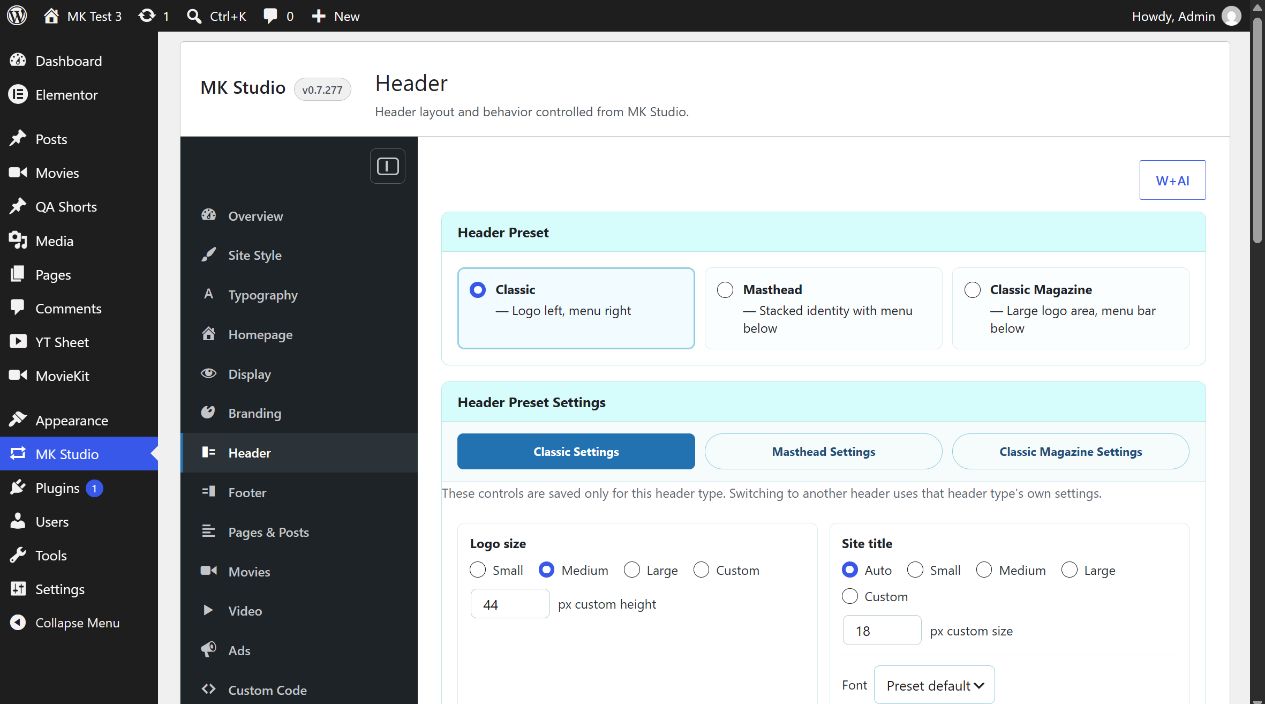
Header Preset
Choose Classic (initial: logo left, menu right), Masthead (stacked identity, menu below) or Classic Magazine (larger identity area, menu bar below). Clicking a preset card shows its own settings, but the change is not applied until Save Changes. Each preset retains its own size, font and spacing values when you switch between them.
Header Preset Settings
Open Classic Settings, Masthead Settings or Classic Magazine Settings. The same controls exist in each panel, with values stored separately for each preset:
| Control | Choices / custom range | Effect |
|---|---|---|
| Logo size | Small, Medium, Large or Custom; custom height 24–220 px | Maximum displayed logo height. Factory defaults: Classic Medium/44 px, Masthead Medium/80 px, Classic Magazine Small/96 px. Saved sites can show different values. |
| Site title | Auto, Small, Medium, Large or Custom; custom 10–96 px | Title text size when Branding allows the title. Factory custom values: 18 px Classic, 22 px Masthead, 32 px Magazine. |
| Site title Font and Weight | Font: Preset default, Body font, Heading font, System sans, System serif or installed Font Library family. Weight: Preset default, Regular 400, Medium 500, Semibold 600, Bold 700, Extra bold 800. | Typography of the visible site title. Preset default inherits this header preset’s styling. |
| Menu typography | Auto, Small, Medium, Large or Custom; custom 10–32 px. Its Font and Weight have the same choices as site title. | Primary menu text. Factory custom field starts at 15 px; Auto is the initial size mode. |
| Menu spacing | Auto, Tight, Normal, Wide or Custom; custom gap 4–72 px | Space between primary menu items. Factory custom field starts at 24 px; Auto is the initial mode. |
The numeric custom fields matter when their corresponding Custom choice is selected. Values outside the accepted ranges are clamped when saved. The font picker draws on MK Studio Typography and installed Font Library families.
Header Options
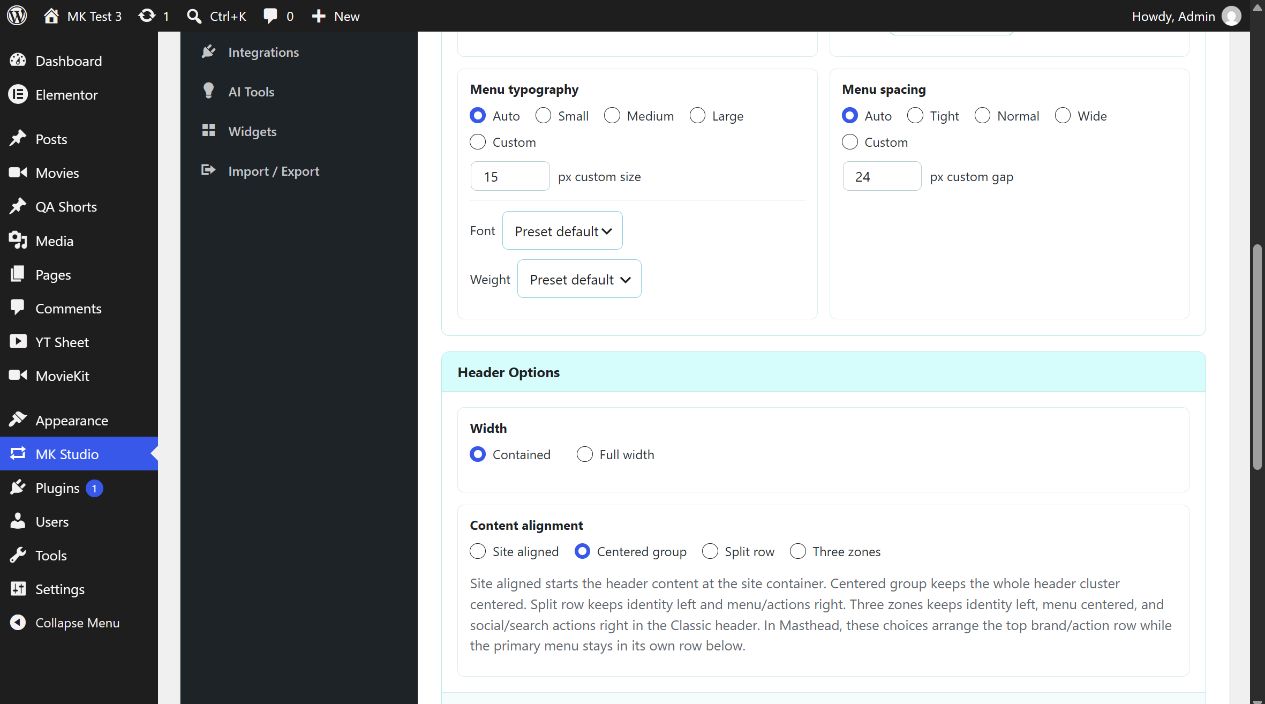
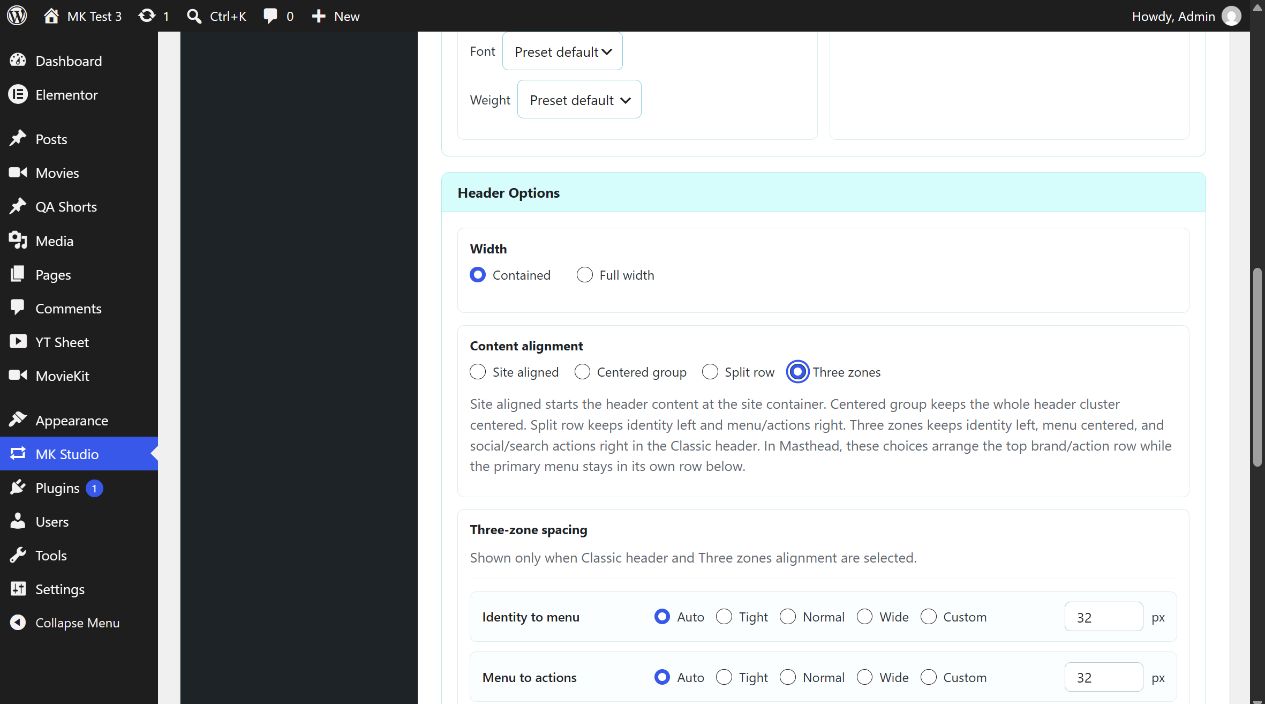
Width is Contained initially or Full width. Content alignment is Centered group initially; alternatives are Site aligned, Split row and Three zones. Site aligned starts at the site container, Centered group centers the cluster, Split row puts identity left and menu/actions right, and Three zones places identity left, menu center and social/search actions right in Classic. In Masthead, alignment applies to the top brand/action row while the menu stays below.
When Classic and Three zones are selected, a Three-zone spacing group appears. Identity to menu and Menu to actions each offer Auto, Tight, Normal, Wide or Custom with a 4–120 px custom gap (32 px initially). Social to search has the same modes with a 0–48 px custom gap (10 px initially). The group hides for other combinations; its Classic values are retained.
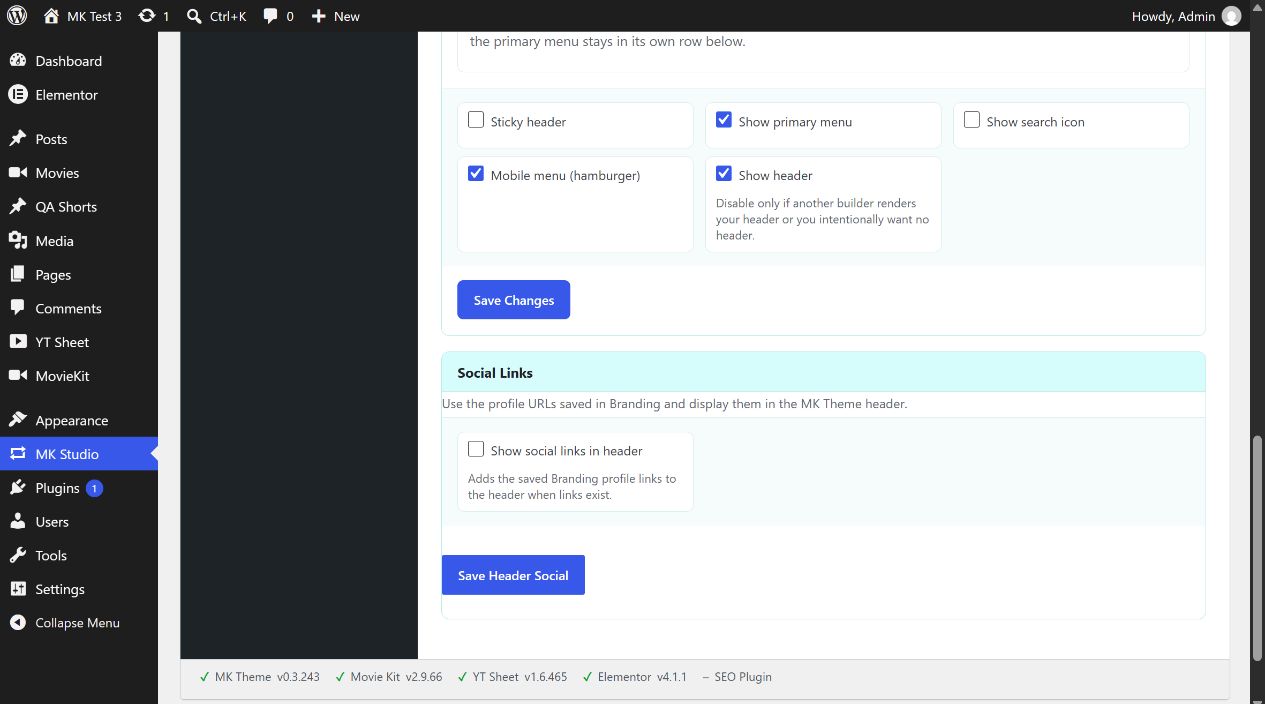
The five switches are Sticky header (off initially), Show primary menu (on), Show search icon (off), Mobile menu (hamburger) (on), and Show header (on). Disabling Show header removes the MK Theme header; use it only when another header is intentionally provided. A menu must be assigned in WordPress for Show primary menu to display useful navigation. Check desktop, scroll behavior and a mobile width after saving.
Social Links
Show social links in header is off initially. Add profile URLs in Branding → Social Profiles, then enable this checkbox and click Save Header Social. Without saved links, enabling the checkbox has nothing to display. This save does not submit pending edits in the main Header form; save each form separately.
Example: compact Classic header
- Set the site title and a Primary logo in Branding and save there.
- Select Classic, choose Small or Medium logo size, leave Width at Contained and Show primary menu on.
- Click Save Changes, then open the public site and check that the assigned menu, logo and mobile hamburger fit.
If Elementor Pro is rendering the site’s header, MK Studio shows a notice that these controls apply when its header template is removed.