MK SYSTEM / DOCUMENTATION
MK Studio Font Library
MK Studio Font Library installs font files locally so you can choose them in your site's typography settings.
Location: WordPress admin → MK Studio → Typography → Font Library. Installed font files are stored locally on the WordPress site. Choose Upload your fonts for a WOFF2 file or Google Fonts to install selected font variants locally. After installation, choose the family in Body Text, Headings or UI Text and save that Typography tab.
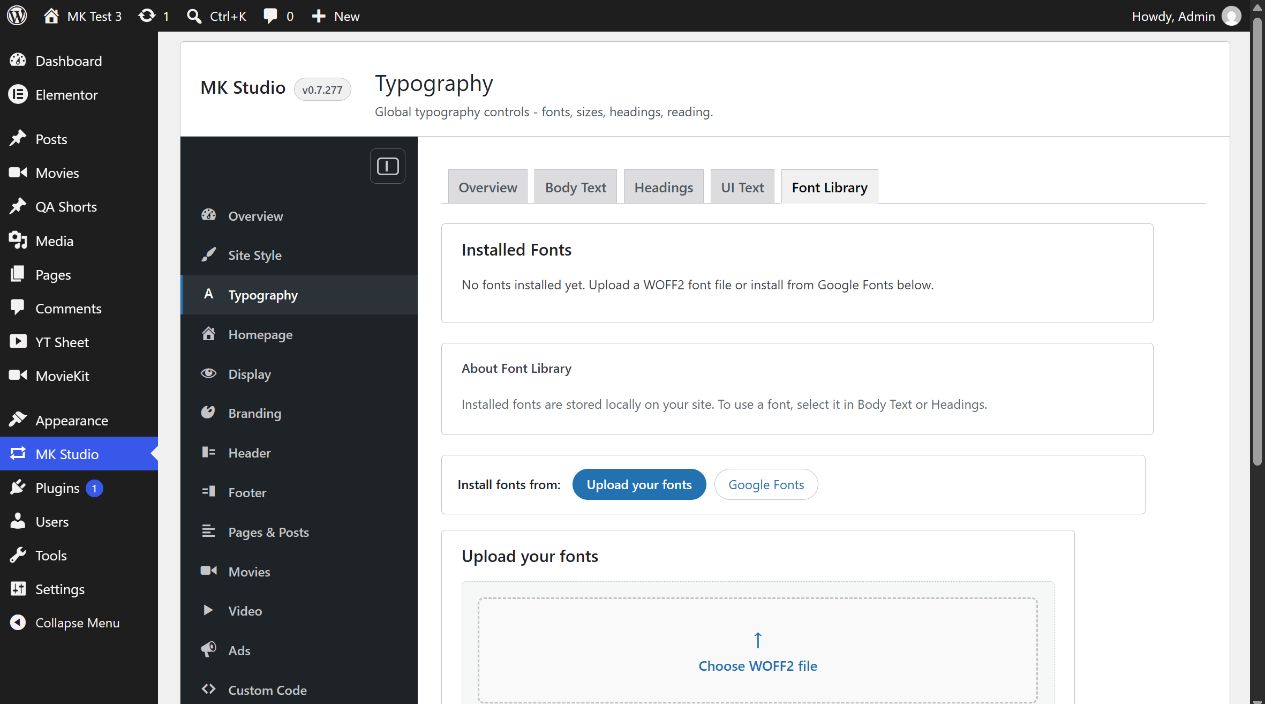
Upload your fonts
- Select Choose WOFF2 file. The file must end in
.woff2and be no larger than 2 MB. - Review the suggested Font family name, Weight and Style derived from the filename; edit them if needed. Style can be Normal or Italic.
- Optionally open Advanced to change the fallback font stack; the initial value is
system-ui, sans-serif. - Choose Upload and create font family. The new family appears under Installed Fonts and in Typography font selectors.
Installed Fonts lists the family, source, available weights and file size. Add weight attaches another WOFF2 weight/style file to the same family. Delete opens a separate confirmation step and is blocked when the family is in use by Typography. Check installed files before removing a family.
Google Fonts: recommended collection
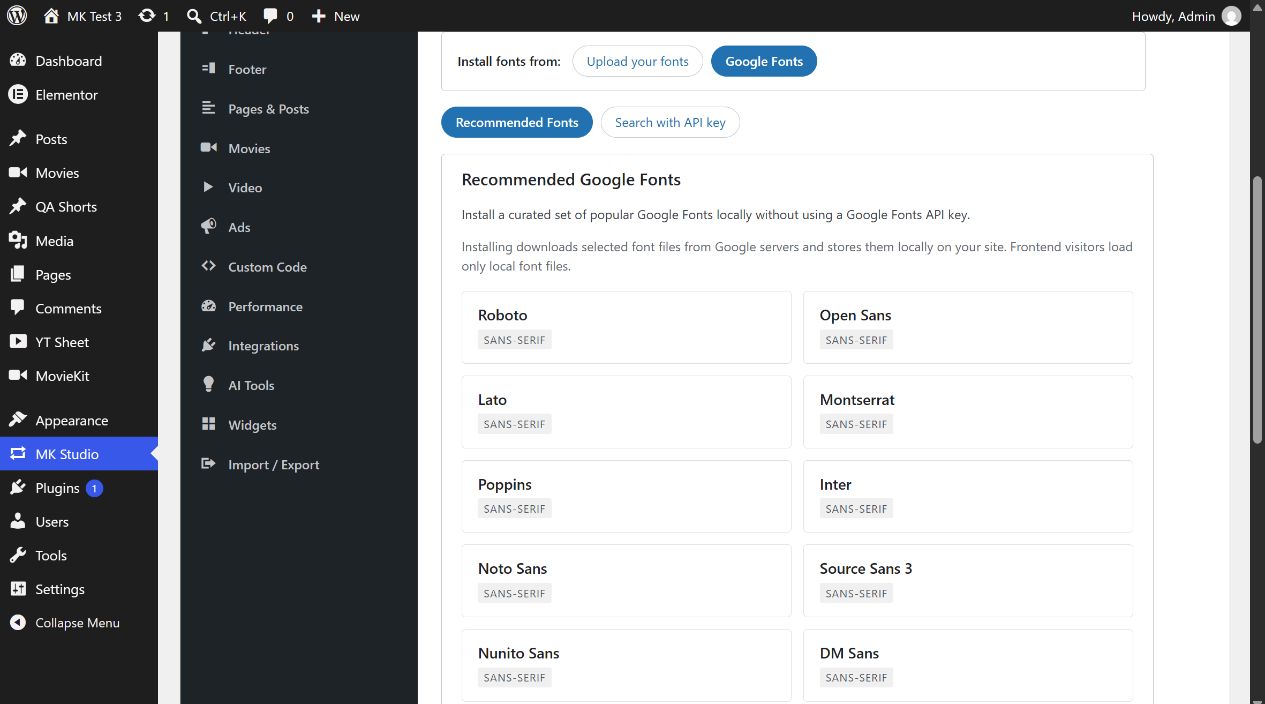
Open Google Fonts → Recommended Fonts and select a family, such as Inter. The detail view shows a preview, license link, available variants and an Install locally button. Choose only weights/styles the site needs; each variant adds a local file. This recommended collection does not require a Google Fonts API key. Installation contacts Google from the admin and stores font files locally; public visitors load local copies after the font is selected in Typography.
Google Fonts: search with API key
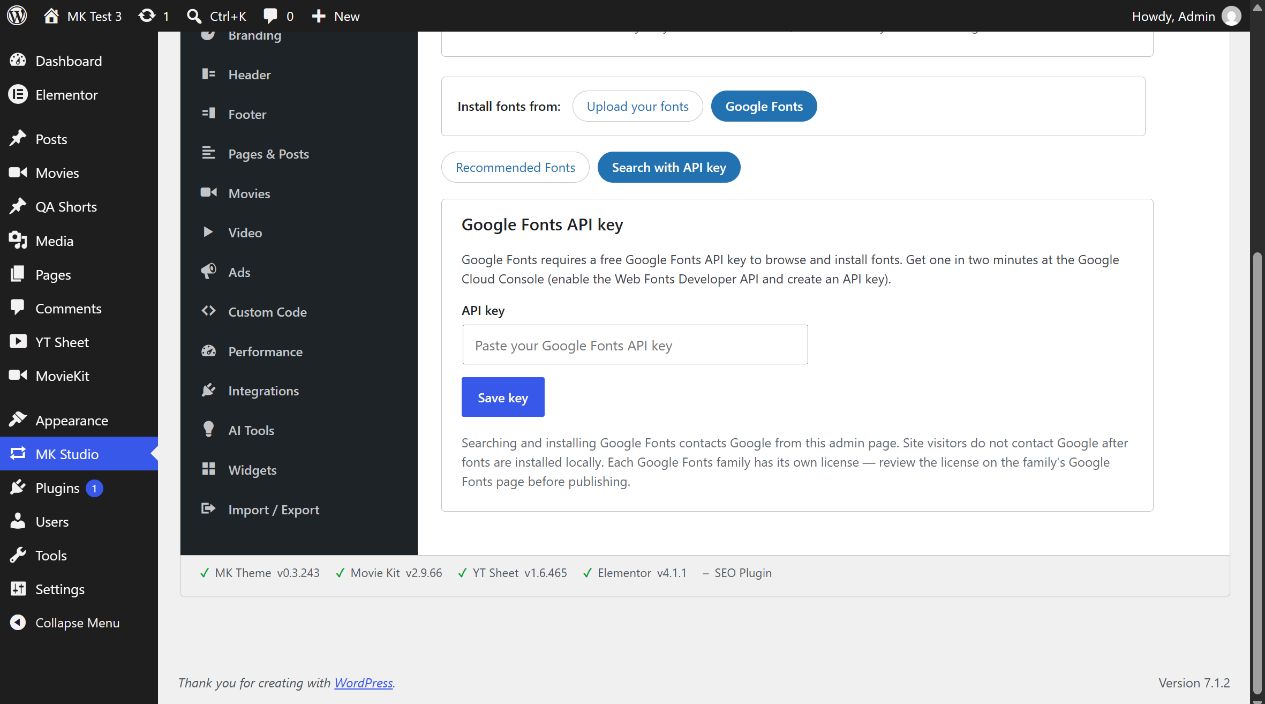
- Follow Google’s Google Fonts Developer API guide to obtain an API key for a Google Cloud project and enable the API it needs.
- In MK Studio, open Typography → Font Library → Google Fonts → Search with API key.
- Paste the key into API key and choose Save key. The plugin masks the stored value after saving. Test connection becomes available and sends a request to Google to confirm the key works.
- Search the catalog, open a family, select installable static variants and choose Install locally. A family available only as a variable font cannot be installed through this path in the current version; use another family or upload a static WOFF2 file.
Replace key updates the saved key; Remove key removes it. Review each family’s license before publishing it.