MK SYSTEM / DOCUMENTATION
Create your first movie
Build your first MovieKit movie manually to understand its fields and page layout before connecting a film database.
Create one movie manually before connecting a film-data API. This shows how MovieKit stores the fields and how MK Theme displays them, without making an external service part of the first test.
Watch: create a movie page with AI
This 2-minute 49-second walkthrough shows the workflow after MovieKit is set up: fetch movie data, choose featured artwork, select the Video First layout and inline trailer, draft an excerpt and review with AI, then publish and preview the movie page.
Watch on YouTube for chapters covering each step. The movie and imported data are fictional demo content. Review fetched information and AI drafts before publishing.
1. Create a movie post type
- Open MovieKit → Setup. If Movies is already listed under Registered Post Types, use it and skip to the next section.
- Select + Add New Post Type. Enter Movies as the plural name, Movie as the singular name and
movieas the slug. - Select + Add Post Type. Confirm that Movies appears in the registered list and in the WordPress admin menu.
2. Assign fields
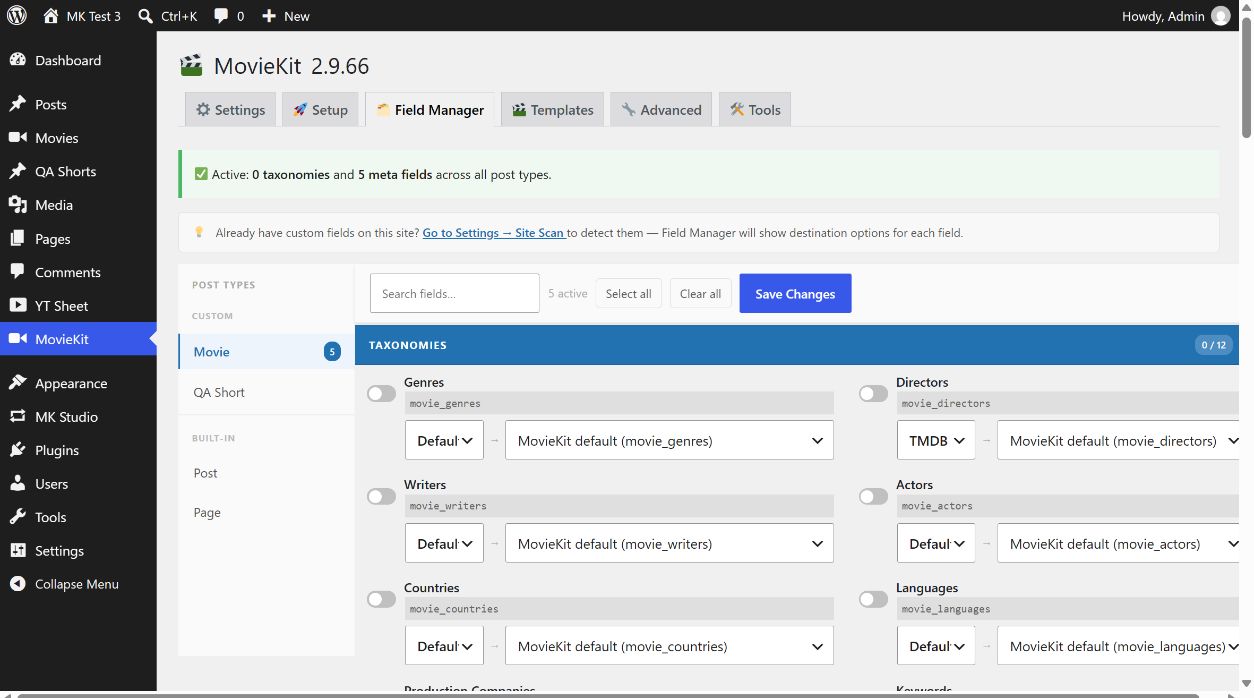
- Open MovieKit → Field Manager and select the Movies post type.
- Turn on at least Title, Year, Runtime, Plot / Overview and Poster URL. These are MovieKit fields; they are separate from the normal WordPress post title and featured image.
- Select Save Changes and confirm that the enabled fields remain selected after a reload.
3. Enter the movie
- Open Movies → Add New Movie. Give the WordPress post a title, such as Example Film.
- In the MovieKit fields, enter a movie title, year, runtime and a short plot. Add a poster URL you have permission to display. You may also set a WordPress featured image.
- Select Publish, then open View Post. Check the title, artwork, runtime and plot on the actual movie page.
- Reload the editor and confirm that the MovieKit values you entered are still saved.
Do not use a regular WordPress Post for this first movie: MovieKit can attach fields to Posts, but the MK Theme movie page workflow here uses a registered MovieKit movie post type. Next, choose a movie template for this same film.
Once the fields are assigned, you can fill available metadata automatically with Fetch Data instead of typing each value. Review the Fetch preview and choose the appropriate write action before applying.