MK SYSTEM / DOCUMENTATION
YT Sheet Video Overrides
YT Sheet Video Overrides let you change a title or thumbnail, or hide a specific video from a grid.
Location: WordPress admin → YT Sheet → Video Overrides. Use an override when one video in a built grid needs a different title or thumbnail, or must be hidden. Rules are keyed by provider and video ID. You can manage them centrally here or from the Video Overrides tab of an individual Source.
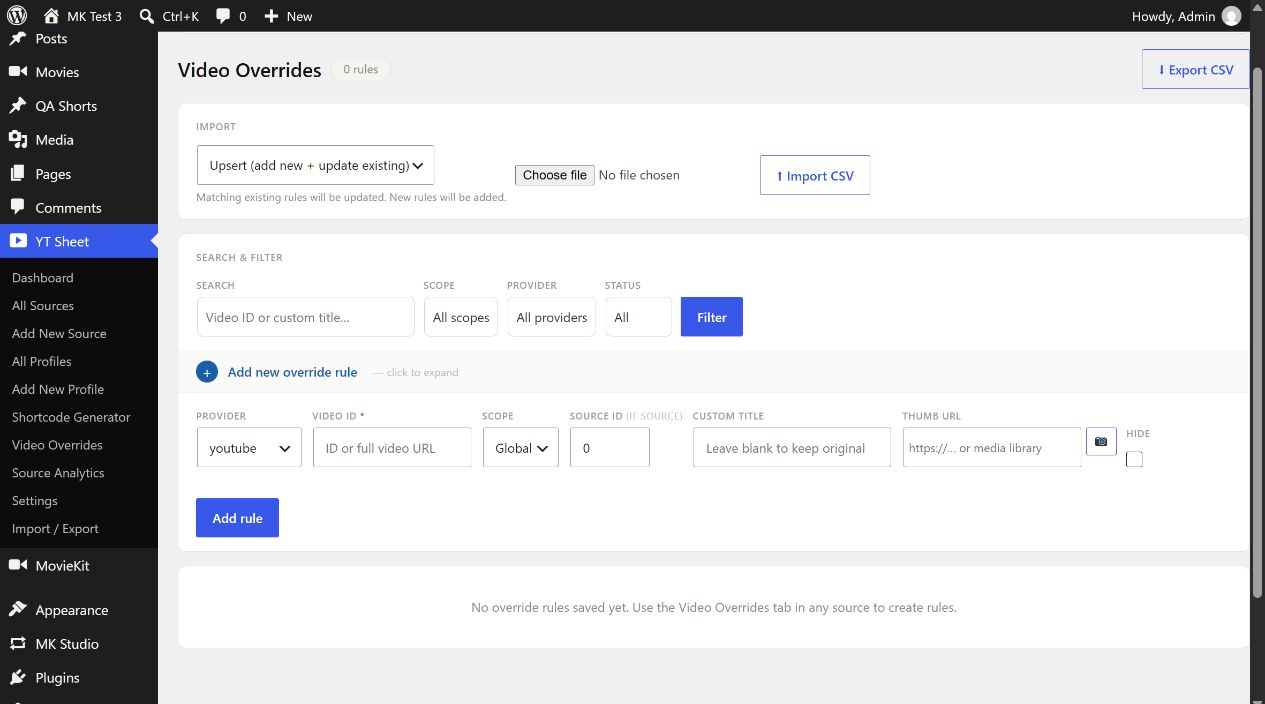
Add a rule
- Open Add new override rule.
- Select the video Provider: YouTube, Vimeo, Dailymotion, OK.ru or VK.
- Enter Video ID. The form accepts an ID or full video URL and normalizes it when saving.
- Choose Global for a rule shared across sources or Source and enter that Source’s numeric Source ID.
- Enter a Custom title, set a Thumb URL or select an image from Media Library, and/or check Hide. Blank title and thumbnail keep the original values.
- Choose Add rule, then check the grid where that video appears.
A matching Source rule takes precedence over a Global rule. Hide removes the matching item from the displayed dataset; a title or thumbnail rule changes only that field. A disabled rule has no effect. Match the provider and actual video ID; a rule for a different provider will not apply.
Find and maintain rules
| Control | What it does |
|---|---|
| Search | Finds a video ID or custom title. |
| Scope; Provider; Status; Filter/Clear | Narrows the rule list. Status offers All, Active and Disabled. |
| Consistency notices | When relevant, links to Global+Source overlaps, disabled rule history or overrides in multiple sources. Source rules take precedence in an overlap. |
| Edit | Opens an inline form for custom title, thumbnail URL and Hide. Save or Cancel there. |
| Disable; Re-enable | Temporarily turns a rule off or on. A disabled row offers Delete, which permanently removes the rule. |
| Select rows | For listed rules, use Disable selected, Re-enable selected or Export selected CSV. |
| Export CSV | Downloads the current filter results; separate selected export downloads only checked rows. |
CSV import
Choose Upsert to add new rules and update matches, or Add new only to skip existing rules. Select a CSV file and choose Import CSV. The next screen previews the file and asks you to map CSV columns before executing the import. Check the mapping and import result notice; a matching rule is identified by provider, video ID, scope and source ID. Export first if you want a backup of current rules.
Video Overrides rules are separate from the global Settings export described on the YT Sheet overview. Test an imported rule in its actual Source and grid.