MK SYSTEM / DOCUMENTATION
MovieKit Settings and API keys
MovieKit settings hold your film database credentials and controls for rich data, field scans and cleanup.
Location: WordPress admin → MovieKit → Settings. This page holds MovieKit’s film database credentials, rich cast and crew storage, a site field scan and a cleanup tool. Administrator access is required.
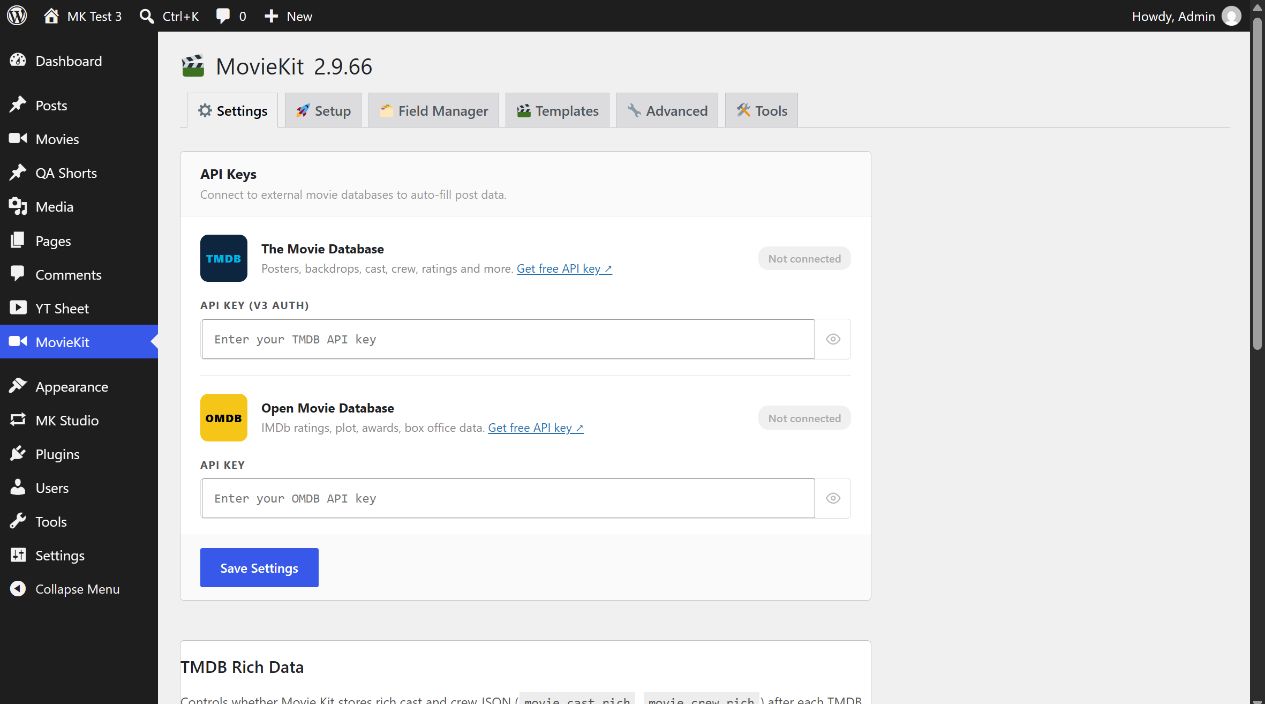
Enter a TMDb or OMDb API key
- Obtain a credential from the provider: TMDb authentication guide or OMDb API key page. Review the provider’s current terms for your use.
- In API Keys, paste the TMDb API Key (v3 auth) into the TMDB field, or the OMDb API Key into the OMDB field. MovieKit’s TMDb requests currently use the v3
api_keyquery parameter; the TMDb API Read Access Token is a different credential and is not the value this field expects. - Select Save Settings. The two key fields are saved together. A blank field clears that provider’s previously saved key. The eye button only shows or hides the value on your screen.
- Open a movie editor and run a supported MovieKit fetch to verify the credential with the service. The Connected badge on this Settings page means only that a nonempty value is saved; Save Settings does not test the provider or fetch a film.
TMDb can supply details such as images, cast and crew; OMDb can supply fields such as IMDb rating, plot and awards. Which values reach a movie also depends on its Field Manager mapping and the fetch choices in the editor. Keep keys out of screenshots, support messages and public pages.
All controls on this page
| Control | Initial state / action | Effect and limit |
|---|---|---|
| TMDB: API Key (v3 auth) | Empty; Save Settings | Saves the TMDb v3 key used by MovieKit fetch and supported image actions. The status badge checks presence only. |
| OMDB: API Key | Empty; Save Settings | Saves the OMDb key used by supported fetch actions. The status badge checks presence only. |
| Show / hide | Hidden input by default | Changes only whether the entered key is visible on this screen; it does not save or test it. |
| Store TMDB rich cast/crew data | On by default; separate Save button | Controls whether subsequent TMDb fetches store rich cast and crew data for advanced layouts. Turning it off keeps standard fields and taxonomies and does not delete rich data already saved. |
| Post type to scan | Public post types shown; attachment excluded | Chooses the post type whose existing custom taxonomies and meta fields Site Scan examines. The menu includes registered MovieKit types. |
| Scan site / Re-scan | Runs only when selected | Stores scan results for the selected post type and reloads the page. Field Manager can use the detected destinations; scanning does not rewrite movie content. |
| Remove orphan meta | Requires confirmation | Deletes every legacy movie_status post-meta row. It does not remove the current taxonomy. Back up the database before using this migration cleanup; it is not an everyday setup step. |
| About MovieKit | Read-only | Shows MovieKit, WordPress and PHP versions plus the number of registered custom post types. |
If a fetch fails
- Confirm the key was saved in the matching TMDB or OMDB field. A Connected badge alone is not a connection test.
- Check the provider’s account, quota and response, then verify that the movie has the identifier required by the selected fetch action.
- Check Field Manager if a provider returns data but the expected movie field is still empty.
Next: create a movie with mapped fields, then follow Fetch movie data automatically for identifier formats, source choices, preview and overwrite behavior.