MK SYSTEM / DOCUMENTATION
MK Studio Widget Areas
MK Studio Widget Areas defines containers and placements for widgets you add through WordPress.
Location: WordPress admin → MK Studio → Pages & Posts → Widget Areas. A widget area is a named container; add its actual widgets under Appearance → Widgets. Empty areas render nothing. The screen has Areas, Classic placement and Guarded placements accordions. Placement changes use Save Widget Area Settings; creating, renaming and deleting a custom area have their own buttons.
Areas
Four protected system areas are always listed: Primary Sidebar (primary-sidebar), Footer Widgets (footer-widgets), Below Content (below-content) and Manual Shortcode Area (manual-shortcode-area). Each card shows and can copy a shortcode such as . Paste it in shortcode-capable content after adding widgets to that area. Protected areas cannot be renamed or deleted.
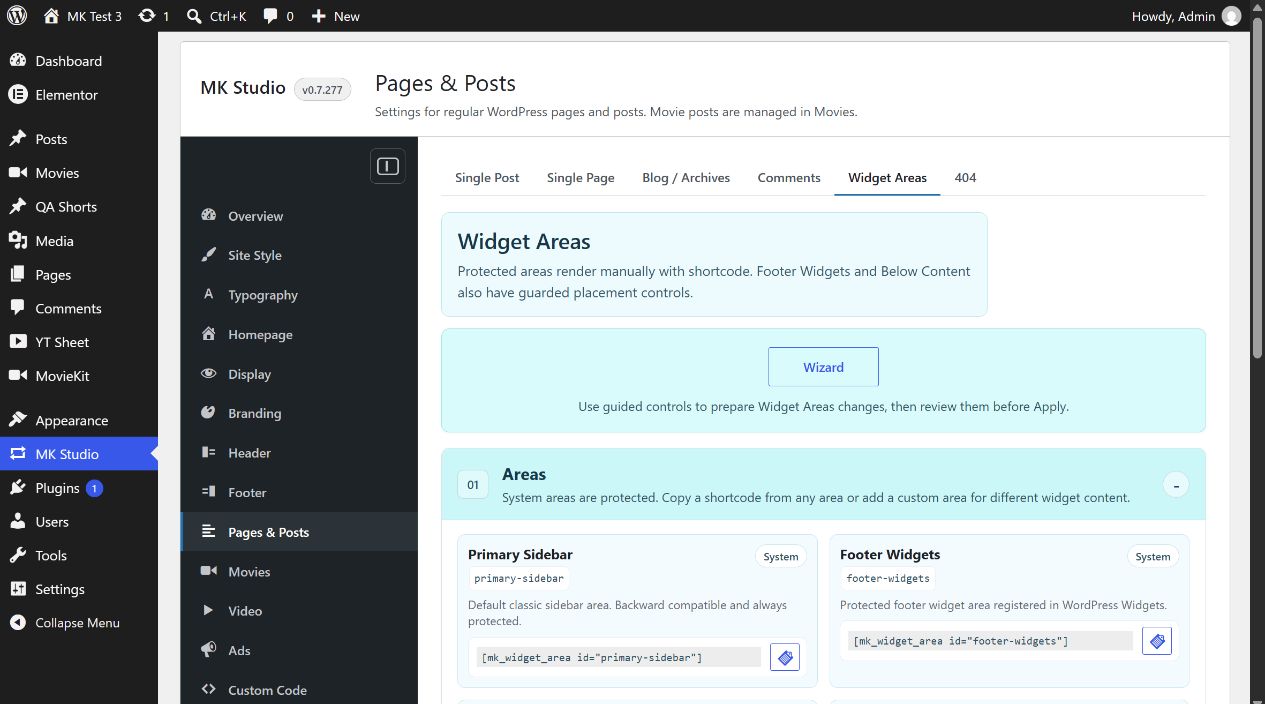
Enter a New widget area name, for example “Newsletter Strip”, and click Add Area to register a custom area. Names must be nonempty and create a unique slug. The new card has Rename and Delete. Rename changes its label while keeping the slug and shortcode stable. Delete removes the custom area and resets any Single Post, Single Page or Blog / Archives placement using it to Primary Sidebar. The deleted area stops rendering; review its widgets in WordPress Widgets and move them to another area before deleting if they are still needed. System areas are protected from deletion. These add/rename/delete buttons submit immediately and are separate from Save Widget Area Settings.
Classic placement
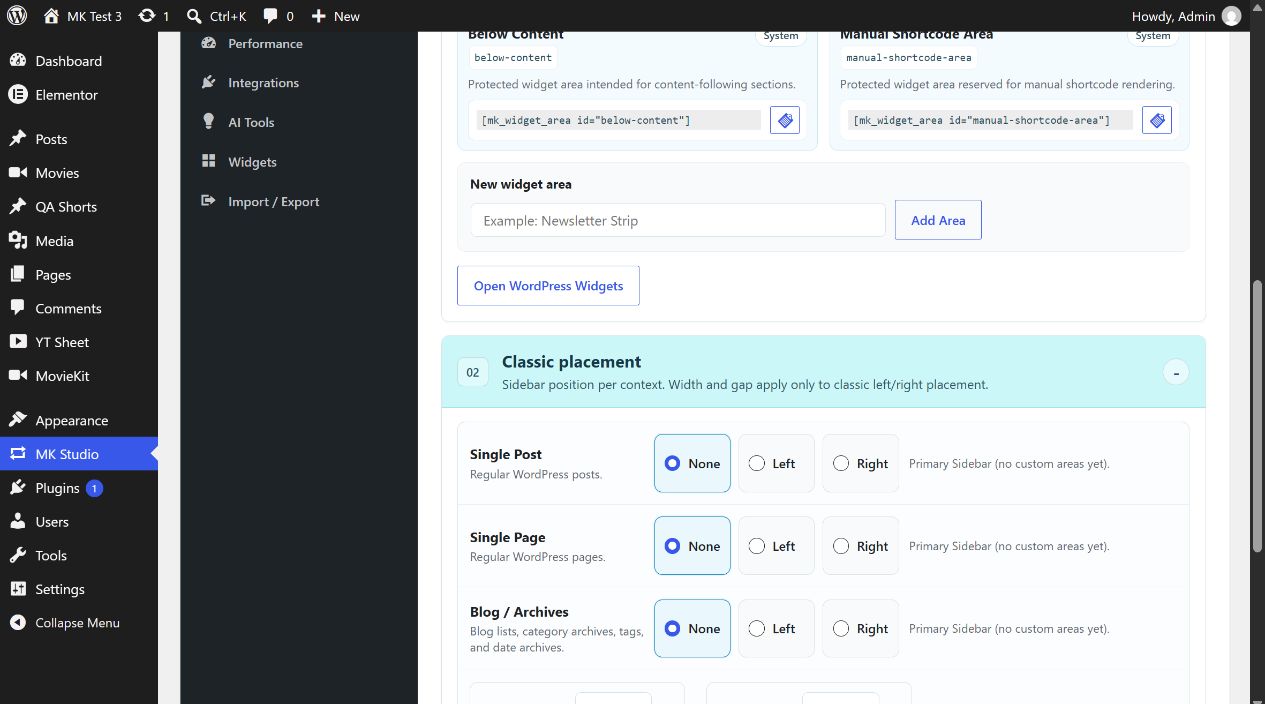
Single Post, Single Page and Blog / Archives each offer sidebar position None (initial), Left or Right. Their area selector uses Primary Sidebar initially and also offers created custom areas. With no custom areas, the page simply reports Primary Sidebar. Sidebar width starts at 320 px and accepts 240–420 px; Content gap starts at 32 px and accepts 0–80 px. These measurements apply when a classic Left or Right placement is used. Select the context, side and area, save, and inspect that type of public page.
Guarded placements
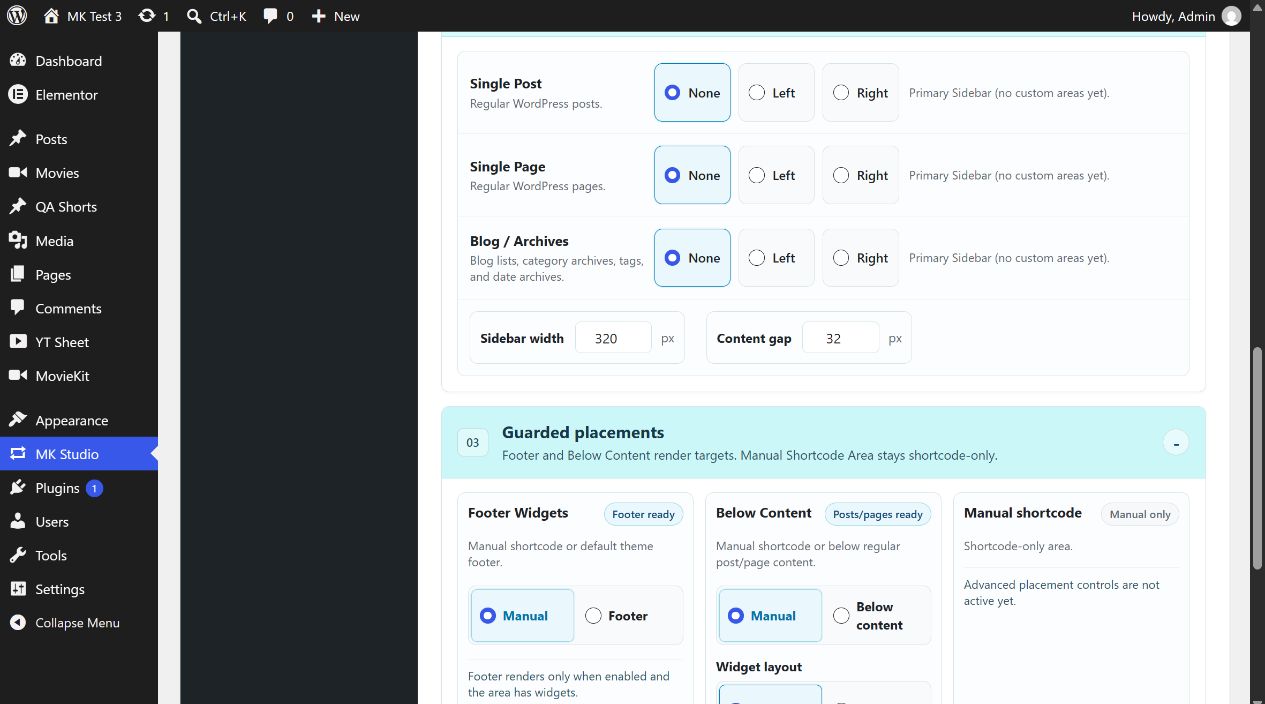
Footer Widgets offers Manual (initial: shortcode only) or Footer. Footer renders automatically only when the footer is enabled and the area has widgets. Below Content offers Manual (initial) or Below content. Automatic output appears below regular post/page content and before comments when widgets exist. Its Widget layout can be Vertical (initial) or Horizontal; this layout choice applies to automatic Below Content placement, while its shortcode remains vertical. Manual Shortcode Area is shortcode-only on this screen; its advanced placement controls are not active. Save Widget Area Settings after changing any placement.
Widget Areas Wizard
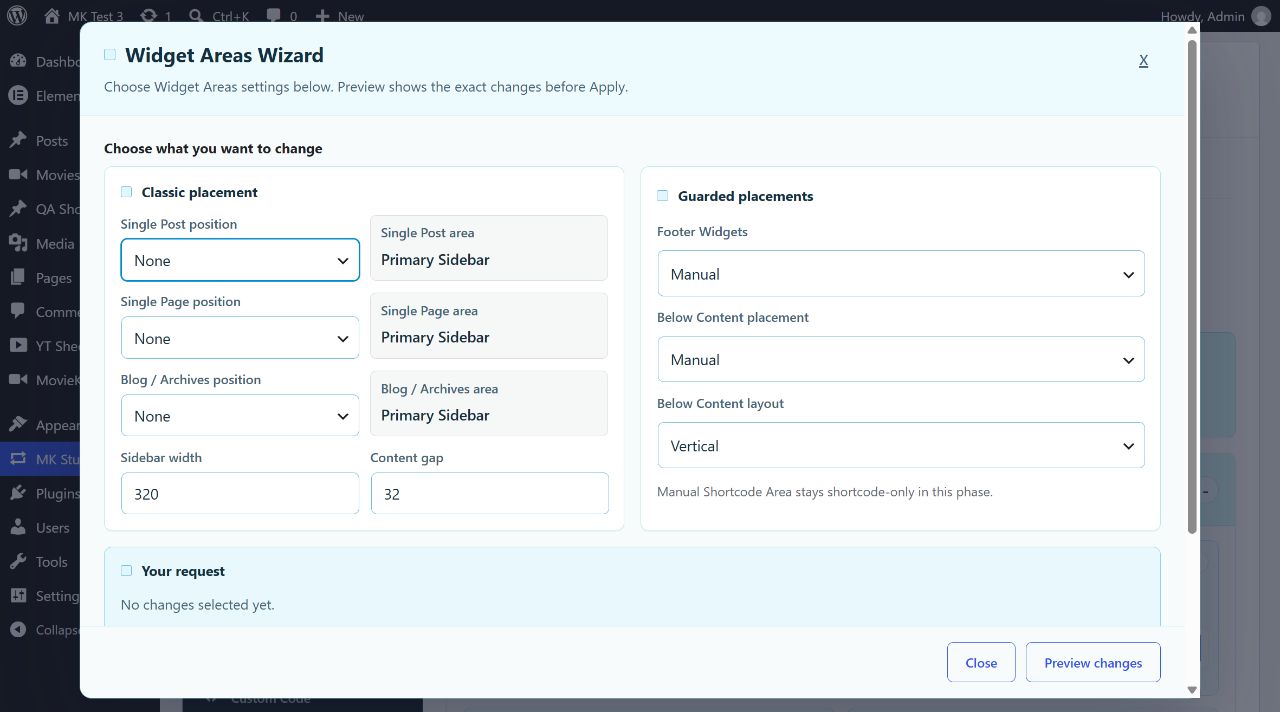
The Wizard opens guided local controls for the same three classic positions, their areas, Sidebar width, Content gap, Footer Widgets placement, Below Content placement and layout. An Optional note can describe the intended arrangement. Preview changes shows the exact pending changes before Apply. The modal explicitly says it uses a local guided preview, with no external provider, model, post content, widget content or builder content. Review the preview before applying; the Wizard does not add widgets to an area.