MK SYSTEM / DOCUMENTATION
MK Studio Footer
MK Studio Footer controls content areas, social placement and the copyright bar at the bottom of your site.
Location: WordPress admin → MK Studio → Footer. The main form controls layout, up to three content areas and the copyright bar; click Save Changes for that form. Social placement has its own Save Footer Social button.
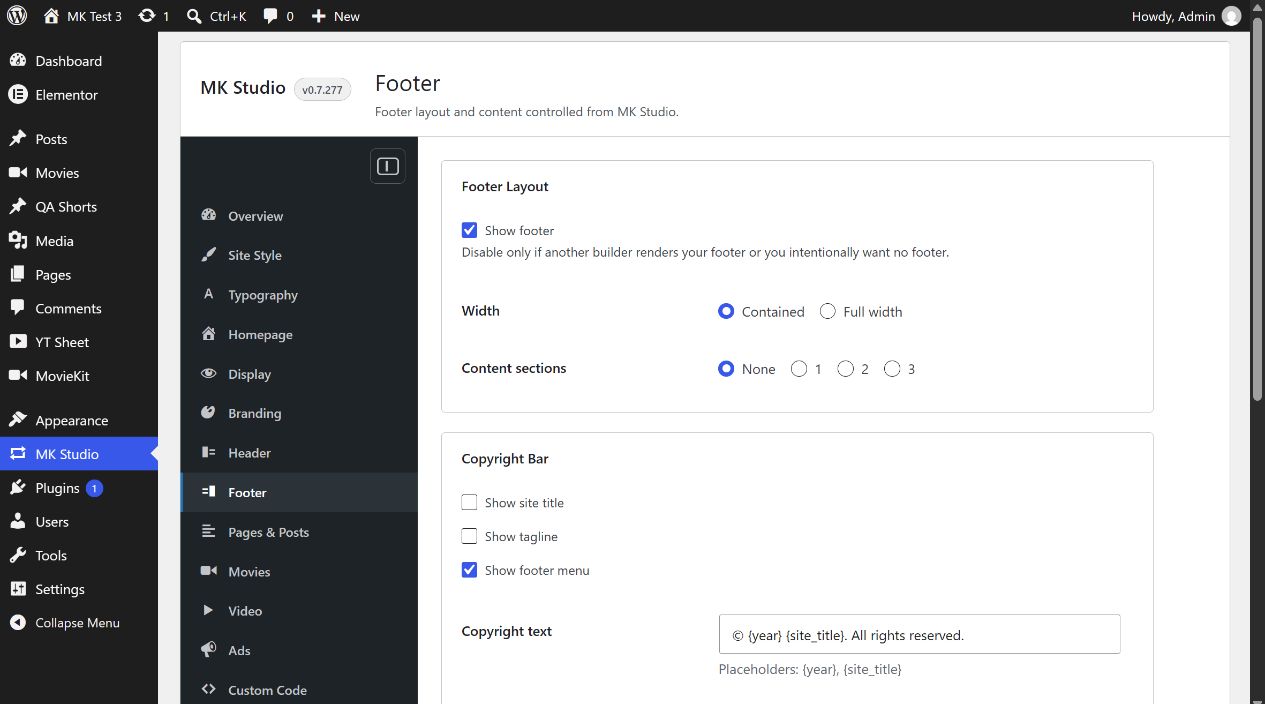
Footer Layout
Show footer is on initially. Turn it off only if a different builder supplies a footer or the site intentionally has none. Width starts at Contained and can be Full width. Content sections starts at None; choose 1, 2 or 3 to reveal that many Section textareas above the copyright bar. The count is not a named preset. Each section accepts text, safe HTML and shortcodes. HTML is sanitized when saved. A shortcode only produces output if its owning plugin is active and the shortcode is valid. Hidden section text remains stored, but only the selected number renders.
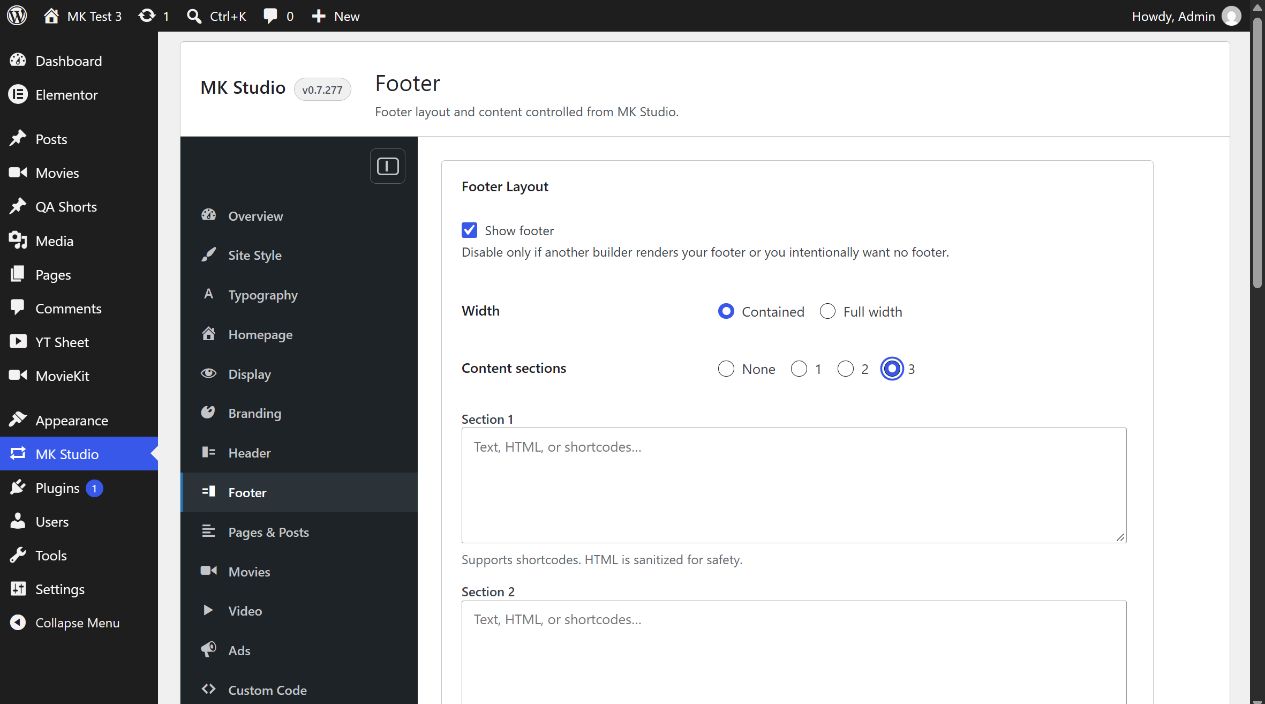
Copyright Bar
Show site title and Show tagline are off initially; Show footer menu is on. The footer menu requires a menu assigned in WordPress. Copyright text starts as © {year} {site_title}. All rights reserved.. The two supported placeholders shown in the admin are {year} and {site_title}; they use the current year and WordPress site title when rendered. Edit the text and click Save Changes. Inspect the public footer afterwards, particularly for a missing menu or a repeated site title when both the checkbox and placeholder are used.
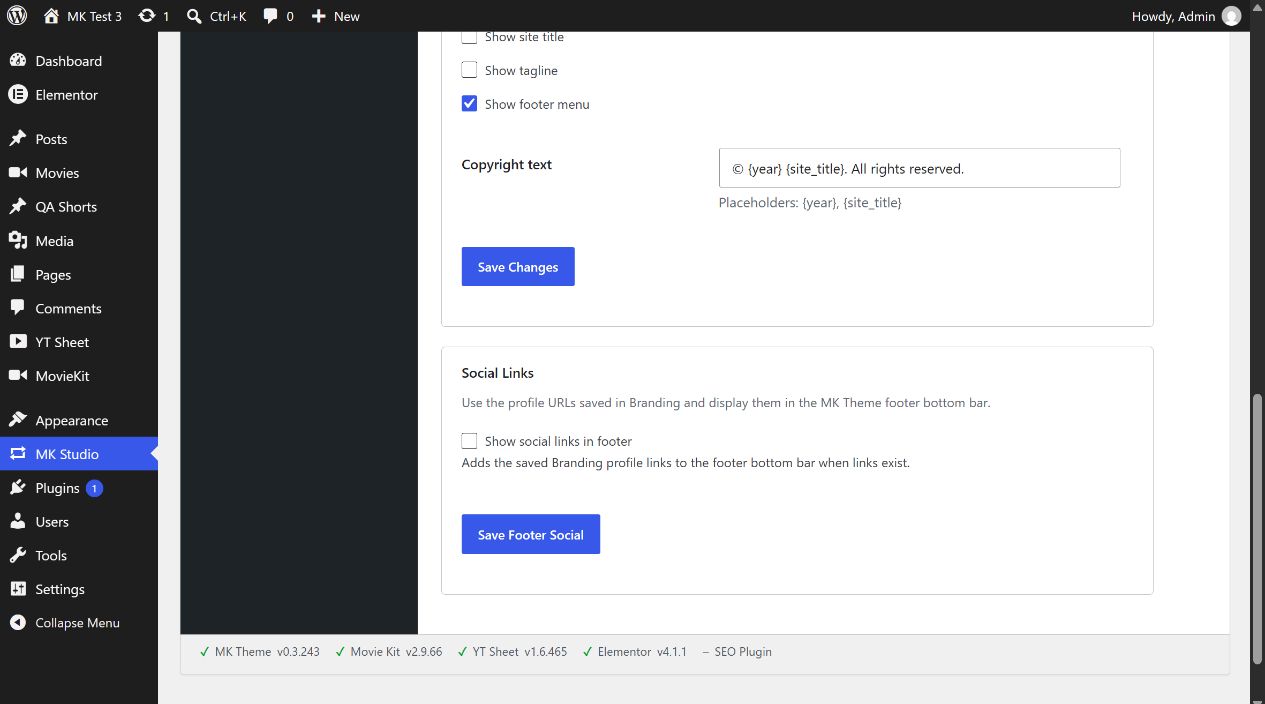
Social Links
Show social links in footer is off initially. Save profile URLs under Branding → Social Profiles, turn on this checkbox and click Save Footer Social. The links appear in MK Theme’s footer bottom bar only when saved profiles exist. This separate button does not submit pending layout or copyright edits.
Example: one useful footer section
- Set Content sections to 1 and enter a short company description or a valid shortcode in Section 1.
- Leave Show footer on, adjust copyright text and click Save Changes.
- Open the public site, check the new section and bottom bar, then inspect a narrow mobile viewport. If a shortcode is printed literally or blank, verify the plugin providing it.