MK SYSTEM / DOCUMENTATION
Quick Setup
Use MK Quick Setup to choose your site identity, appearance, header, homepage and movie page defaults. Review the changes before applying them.
Quick Setup is included in MK Studio 0.7.280 and linked from MK Theme 0.3.249 or later. Install and activate MK Studio first. MovieKit is needed for the movie and video starting layouts. You can skip setup and use the normal Studio controls at any time.
Open Appearance > MK Setup > Start quick setup, or MK Studio > Quick Setup. You need an administrator account with permission to edit theme settings.
Watch the Quick Setup walkthrough
Follow this short screen-recorded guide to connect your FramePress purchase, choose your appearance, configure the header and homepage, review optional API services, and apply your setup.
Watch on YouTube · 3 minutes 17 seconds
1. Your site
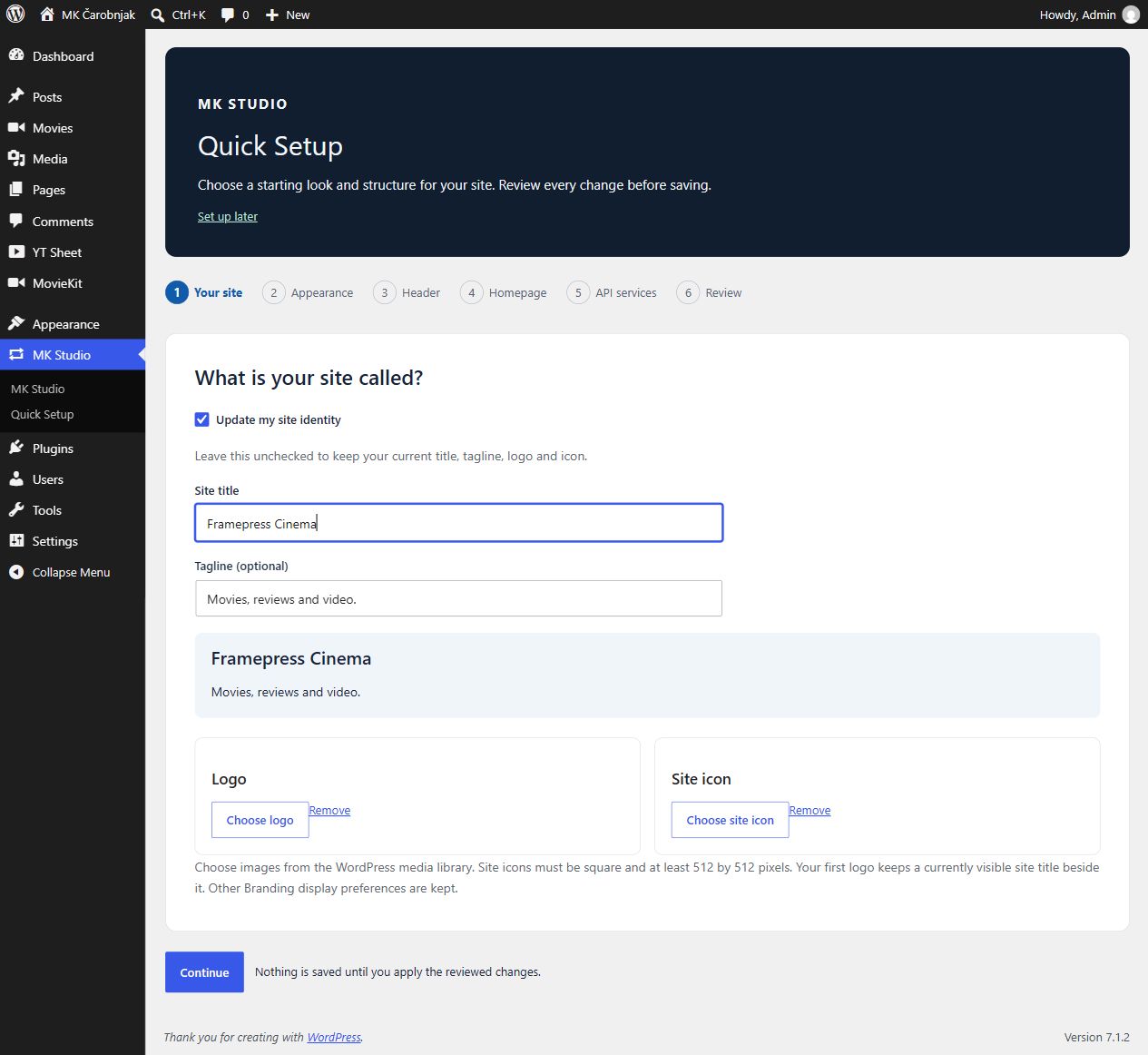
Enable Update my site identity to change the site title, optional tagline, logo or site icon. Current values are prefilled. Leave the identity update unchecked to retain the current identity.
The images come from the WordPress media library. The site icon must be square and at least 512 by 512 pixels; crop it first if needed. Choosing or removing a logo selects the identity update. When you add your first logo, a currently visible site title stays visible beside it. This change is listed in the review. Other Branding visibility controls are kept.
2. Appearance
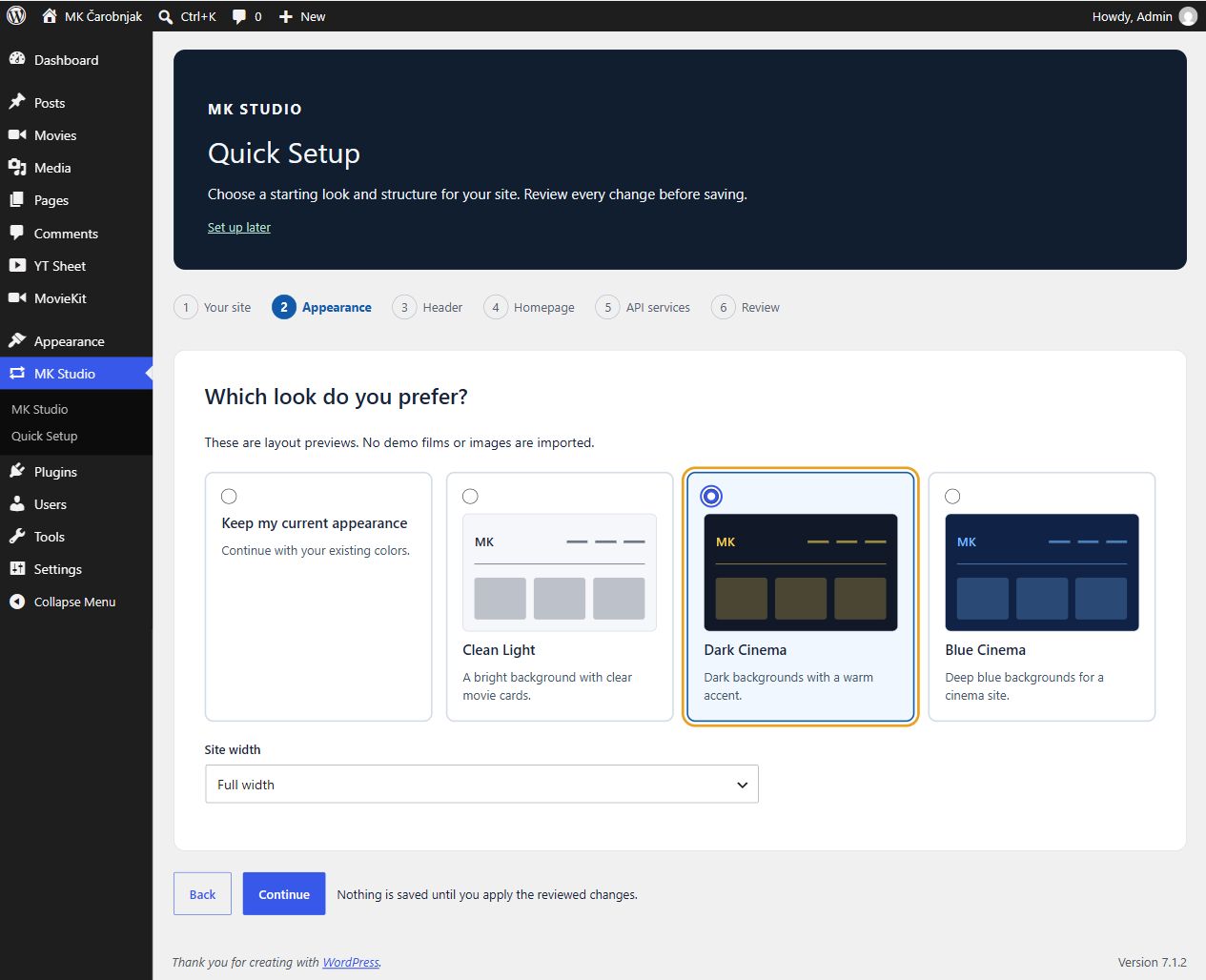
Choose Clean Light, Dark Cinema, Blue Cinema, or Keep my current appearance. The cards illustrate layout and color choices and do not import demo content. Saved color fine tuning remains active. You can review it in MK Studio > Site Style.
Choose a site width or keep the existing width. The new-site starting choice is full width. Choosing Dark changes the color preset; homepage and movie template choices are separate, so you can also create a dark blog or a light video site.
3. Header
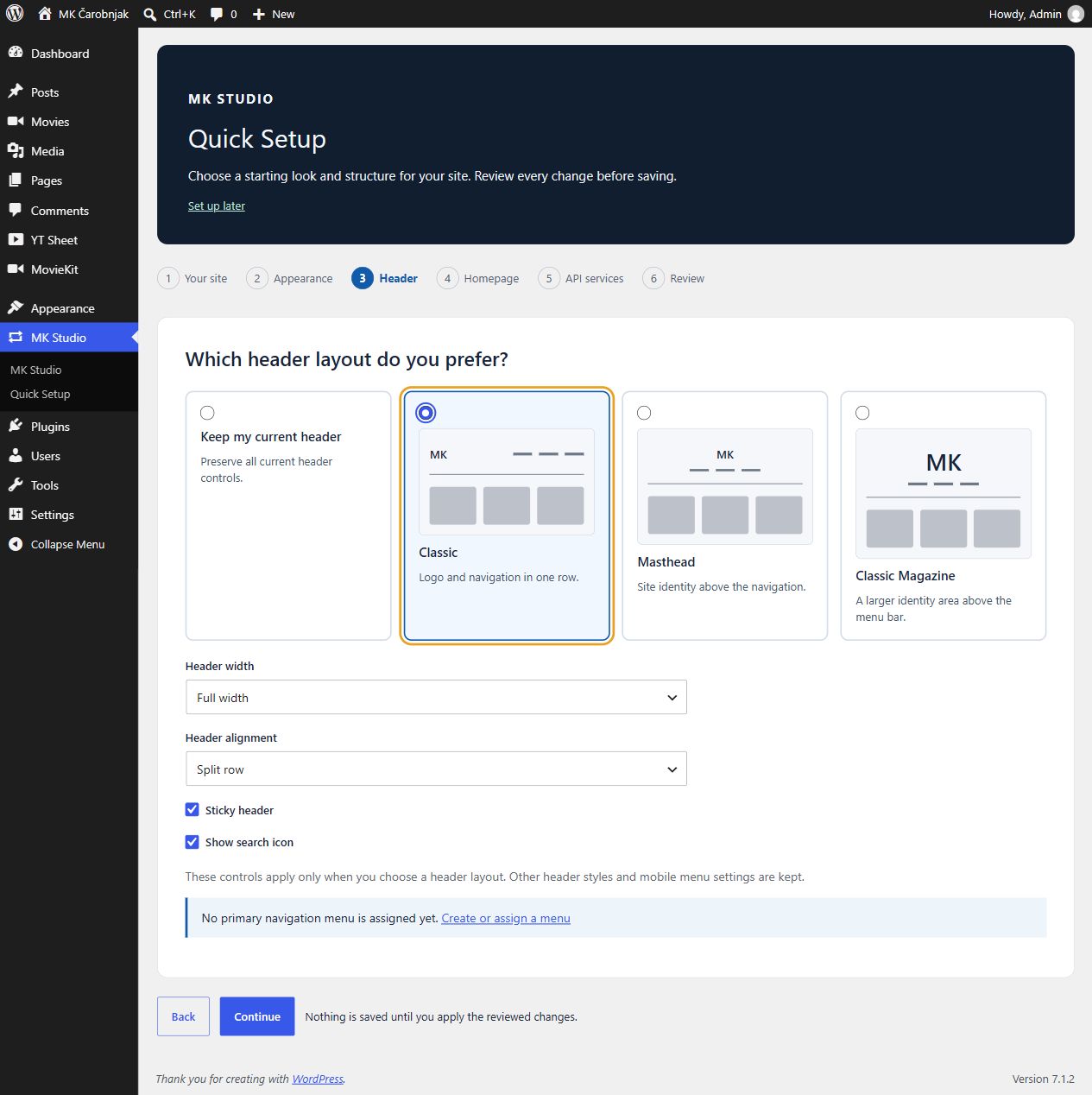
- Classic: site identity and navigation in one row.
- Masthead: site identity above the navigation.
- Classic Magazine: a larger identity area above the menu bar.
- Keep my current header: preserve all header controls.
When selecting a layout, choose its width, alignment, sticky behavior and search icon. Fresh setup starts with Classic, full width, Split row, sticky and search enabled. Typography, preset styles, menu assignments and mobile behavior remain in their existing controls.
If no primary menu is assigned, the wizard links to the WordPress menu editor. It does not create a menu for you. Create your menu and assign it to the theme’s Primary Menu location when you are ready.
4. Homepage and movie pages
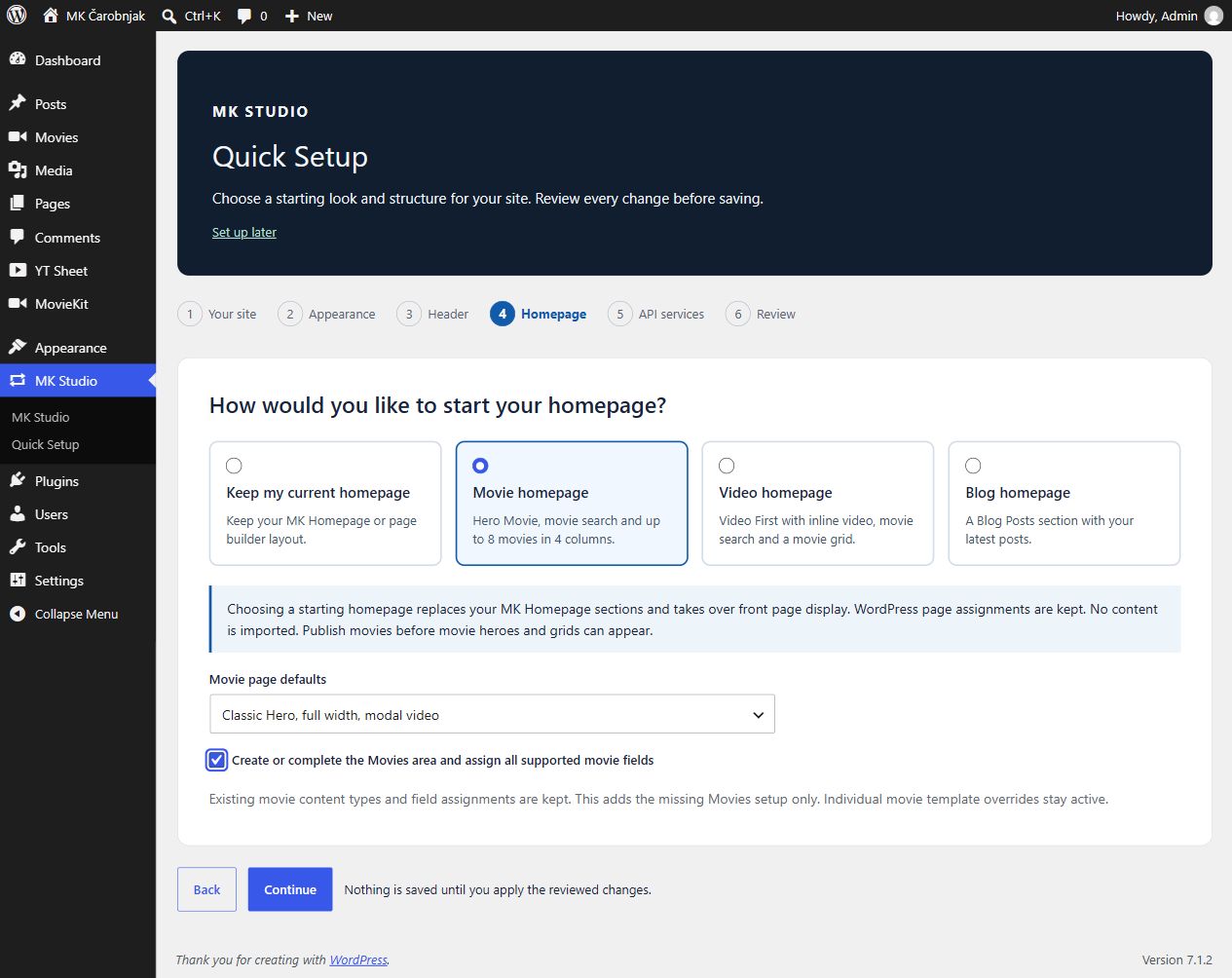
Keep the current homepage to preserve an existing MK Homepage or page builder layout. A starting layout replaces the MK Homepage section structure:
| Choice | Starting sections |
|---|---|
| Movie homepage | Hero Movie, Movie Search, Latest Movies |
| Video homepage | Video First with inline video, Movie Search, Latest Movies |
| Blog homepage | Blog Posts |
Movie grids display up to eight movies in four columns. The remaining starter slots are disabled. Genre sections can be added later from your actual content. No movies, reviews, playlists or third-party images are imported.
Starting layouts enable MK Homepage on the front page. The existing WordPress front page and posts page assignments remain saved, although the front page display is taken over by MK Homepage. Keep the current homepage if you want its page builder content to continue displaying.
Movie and video choices are available when MovieKit is active. Publish movies before movie heroes and grids can appear. Video playback also requires an available supported source.
Movie page defaults is a separate choice:
- Keep the current template and behavior.
- Enable Classic Hero, full width, modal video.
- Enable Video First, full width, inline video.
Other movie display and design controls are retained. Individual movie overrides continue to take priority.
Select Create or complete the Movies area to create the missing Movies content type and add all currently supported movie fields and taxonomies to it. Existing content types, labels and field assignments are preserved. If another content type or page already uses the Movies name, configure your area in MovieKit before continuing.
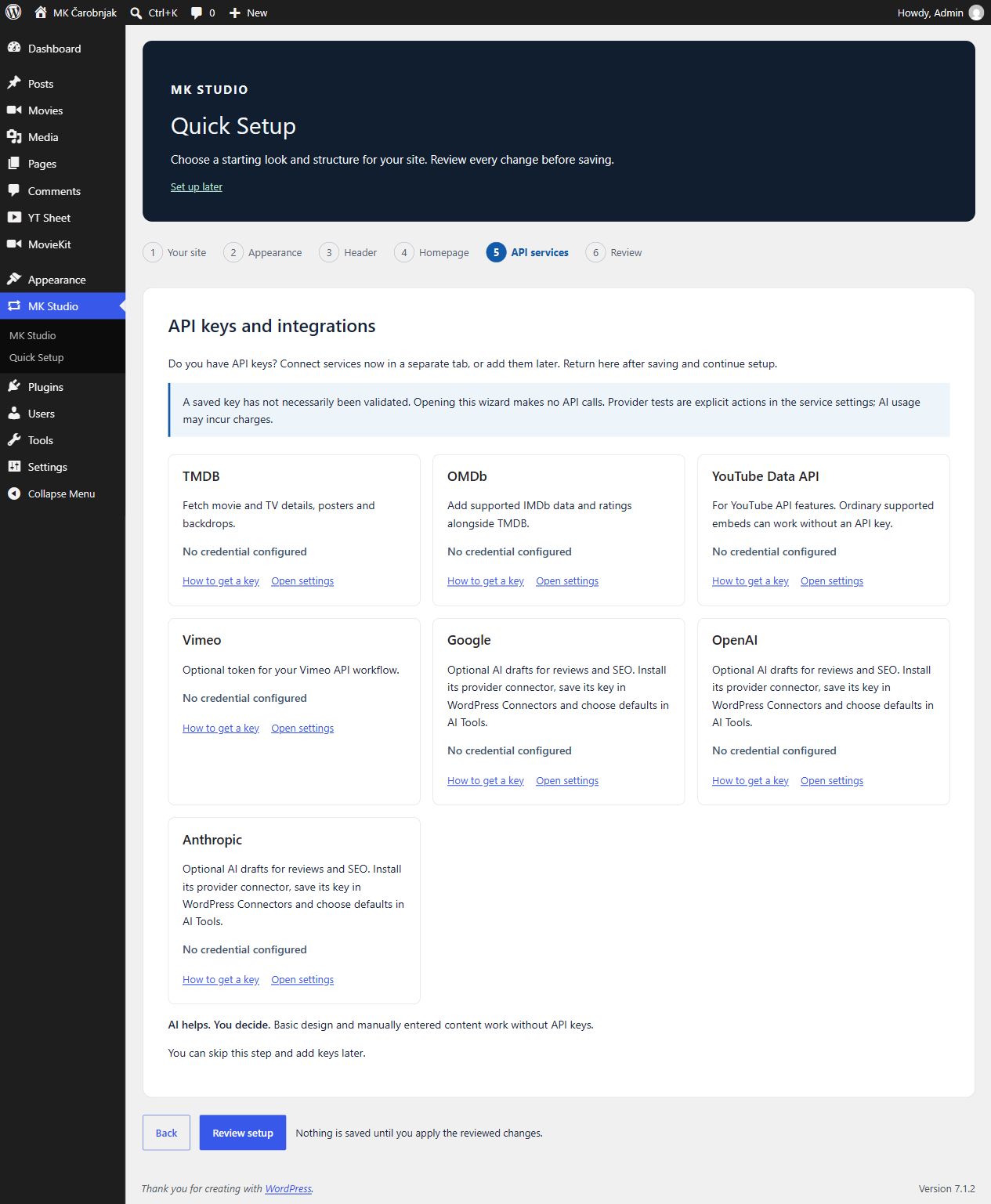
5. API services
Connect services in the existing settings screens using Open settings, then return to the wizard. Those screens open in a separate tab and save through their own normal controls. You can also continue and add keys later.
- TMDB: film and TV details, posters and backdrops.
- OMDb: complementary supported IMDb data and ratings.
- Google, OpenAI or Anthropic: optional AI review and SEO drafts. Install the matching AI provider connector, configure its credential in the WordPress connector controls when available, and select defaults in Studio AI Tools.
- OpenRouter: optional text drafting through MK Studio’s built-in adapter. Configure its key, exact model and any paid-use consent in MK Studio → AI Tools → Providers & Defaults. See API keys and AI setup.
- YouTube Data API: YouTube API features. A key is not a blanket requirement for ordinary supported YouTube embeds.
- Vimeo: optional credentials for your Vimeo API workflow.
Each service links to its key or application page. The wizard shows only whether a credential is configured. This status does not prove the credential is valid, funded or permitted to use a model. Opening setup makes no API requests. Connection tests are explicit actions in the service settings. AI usage may incur provider charges.
AI helps. You decide. Review and edit generated text before saving it. For credential setup and model selection, see AI keys & setup.
6. Review and finish
Review setup validates your selections and lists actual changes. Back and Continue do not save site settings. Use Back to choices to revise selections. Use Apply setup to save the reviewed configuration.
If relevant settings change after the review, setup asks you to review again. If a save fails, setup attempts to restore the affected settings and reports the result. Content, API credentials and navigation are not reset by setup.
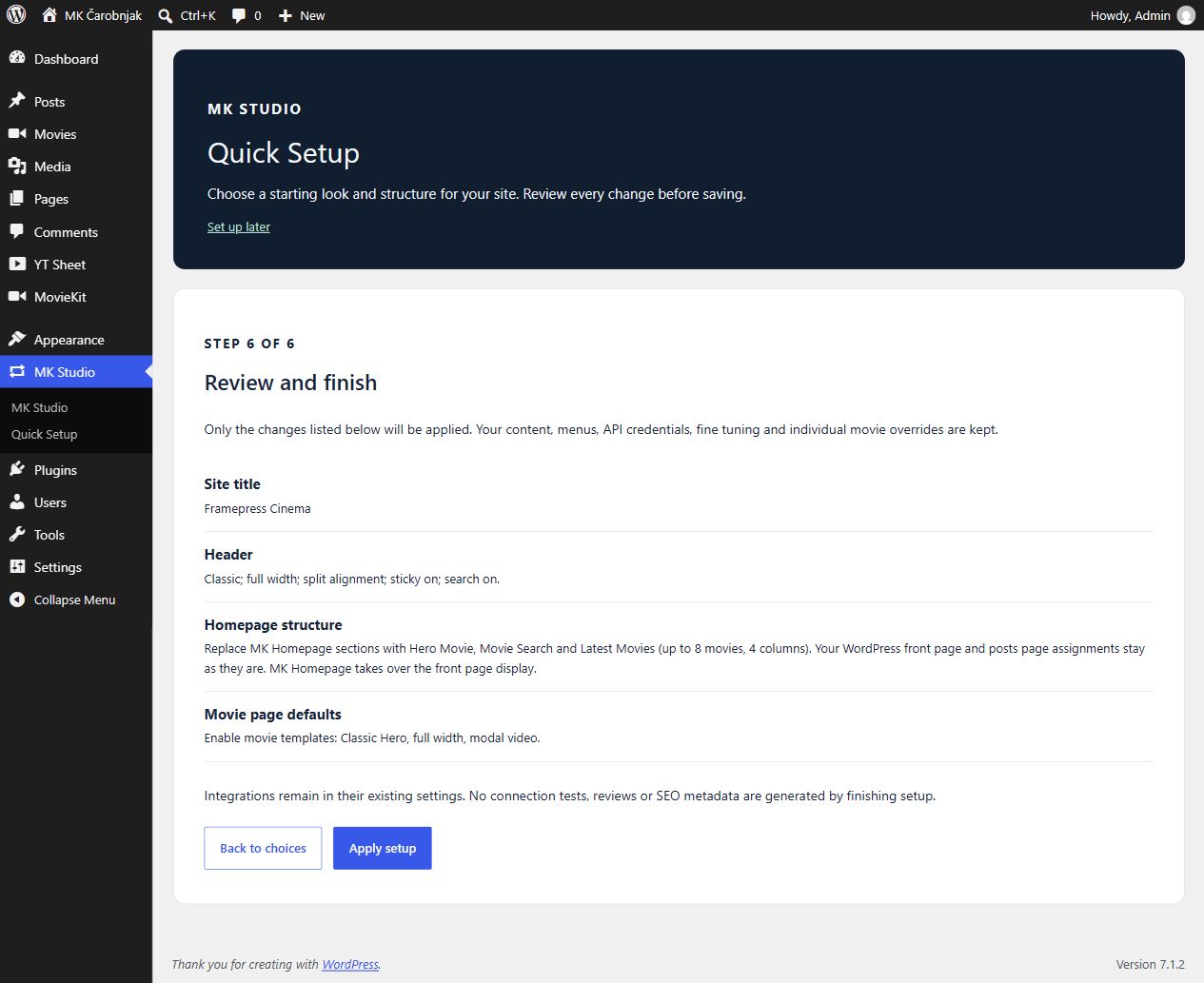
After success, open the site, Studio, the movie editor or integration settings. The completion screen also offers Undo these setup changes for 30 minutes. Undo requires the affected settings to stay unchanged. It does not delete content, and it will not remove a newly created Movies area once that area contains content. Adjust your design in Studio in that situation.
Returning to Quick Setup
When returning to setup on a configured site, keep-current choices are selected. You can replace only the areas you choose. Setup does not generate reviews or SEO metadata, run provider connection tests, or complete Yoast’s own workflow.
Next, create your first movie, refine your homepage sections, or open Site Style for further design controls.