MK SYSTEM / DOCUMENTATION
Write a movie review with AI
Create a movie review with AI using saved film details, an optional source file and your own viewing notes.
Location: edit a MovieKit item with the Review field assigned → Review → Write with AI. Configure a provider first using API keys and AI setup. AI helps. You decide. The generator drafts text; you assess it and control saving and publication.
1. Prepare the movie context
- Assign the Review field to the movie’s post type in Field Manager.
- Enter or fetch the correct title, year, plot and relevant credits. Review the facts and save the movie before generating.
- Prepare your own viewing notes: themes, performances, pacing, visual choices, sound and intended audience. Note the spoiler level and editorial angle.
2. Add instructions and an optional source file
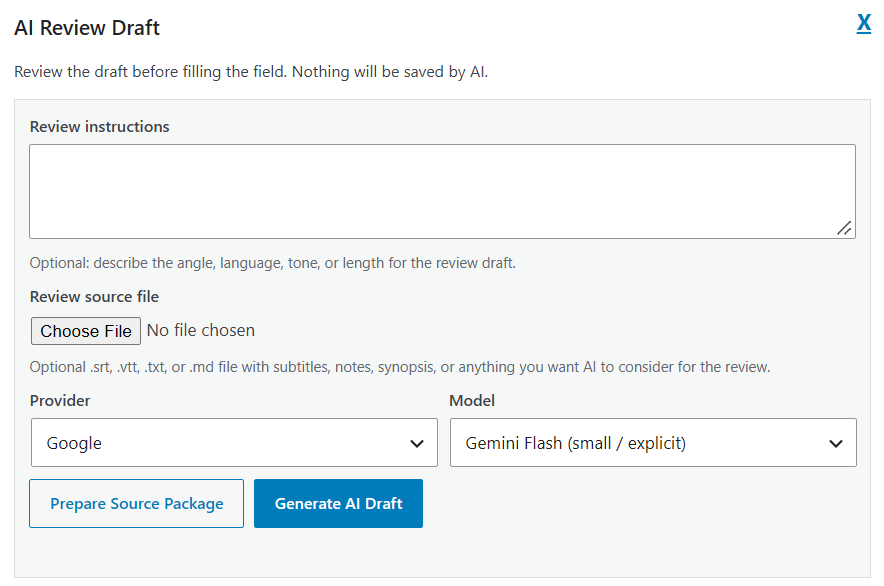
- Select Write with AI beside Review to open AI Review Draft.
- Choose the intended Provider and Model family in the modal. Check these selections for this request even if a global default is saved.
- In Review instructions, specify language, tone, approximate length, focus and spoiler limits. Saved Review style instructions provide the site’s defaults.
- Optionally choose one Review source file. Accepted text extensions are
.srt,.vtt,.txt,.mdand.markdown. This control is not a general PDF, Word, audio or movie uploader.
How subtitles and notes help
SRT and VTT supply dialogue and scene context. MK Studio removes subtitle timing/cue information and normalizes the dialogue before including it in the request. TXT/Markdown can provide a synopsis, viewing notes or a review brief. The modal accepts one file per request; combine relevant notes into one text file if you need several sources.
Subtitles do not show cinematography, acting delivery, editing or music. Add your observations rather than expecting dialogue alone to establish those judgments. Use subtitles matching the correct film, episode and version. Quotes should be short and traceable to the supplied source; check them yourself.
Default limits are 256 KiB per file and 45,000 normalized characters passed as source context; site customizations can change these limits. Longer normalized text is capped and the source summary reports truncation. A focused source file is more useful than assuming that every line of a full subtitle file was considered.
Preparation reads the temporary upload for the request; it does not attach the subtitle file to the movie’s Media Library. When you generate, the included text is sent to the selected external AI provider. Use material you are entitled to share and exclude private information.
3. Generate and review the draft
The local source-package preview only prepares context; it is not an AI-written review and makes no provider call. Select Generate AI Draft to request a real draft. Generation does not save or publish the movie. Read the generated text and check factual claims, scene details, quotations, spoilers, tone and the verdict. Revise the prompt and regenerate if needed; real requests can consume provider usage.
Write an English review of about 700 words for a film magazine. Focus on moral conflict and pacing. Use the attached subtitles to ground dialogue references and my notes for performance analysis. Avoid major ending spoilers and invented quotes. Finish with a balanced verdict.
4. Fill the editor, then save yourself
| Action | Result |
|---|---|
| Fill Empty Field | Places the generated draft in an empty Review editor. |
| Replace Existing Review | Replaces the current editor text with the generated draft. Preserve any text you want to keep first. |
| Append to Existing Review | Adds the draft after existing review text. Check for repeated sections. |
| Cancel | Closes the modal without filling the field. |
These text actions change the editor, not the saved post. Edit the review and use WordPress Save Draft, Update or Publish when ready. Review drafting does not run Fetch, choose artwork, change Movie Options or save SEO fields. For SEO generation, save the finished review first, then follow SEO metadata.
If the button or result is unavailable
Check the assigned Review field, saved movie, editor permissions, provider integration, key, model and provider-call gates. For quota, overload and authentication errors, use the AI setup troubleshooting table. A draft cannot supply trustworthy details that are missing from the context.