MK SYSTEM / DOCUMENTATION
MK Studio Widgets
Location: MK Studio → Widgets. Reference: MK Studio 0.7.305 with MK Theme 0.3.273.
Use these generators to build movie sections, article sections and search forms without writing HTML. Choose the settings, copy the shortcode and place it on a page. This page first explains the Studio shortcode generators, then the separate native Elementor widgets.
On this page
- MK Latest Movies
- MK Hero Movie
- MK Hero Slider
- MK Video First
- Posts / Journal
- MK Video Grid
- MK Explore
- MK Search
- Search types and other placements
- Native Elementor Widgets
A. Shortcode Generators
Before you start
Activate MK Studio and MK Theme for the full movie presentation described here. Movie sections use movies already created in a MovieKit collection; publish the movies you want visitors to see. Posts / Journal uses ordinary published WordPress Posts. Movie search and Explore also depend on the collection’s movie taxonomies. None of these generators creates movies or articles for you.
Open MK Studio → Widgets and select a generator. Only one generator opens at a time. Its fields remain in place while you switch generators on this screen. Copy your shortcode before reloading or leaving the screen; generator edits do not save a page or create a reusable profile.
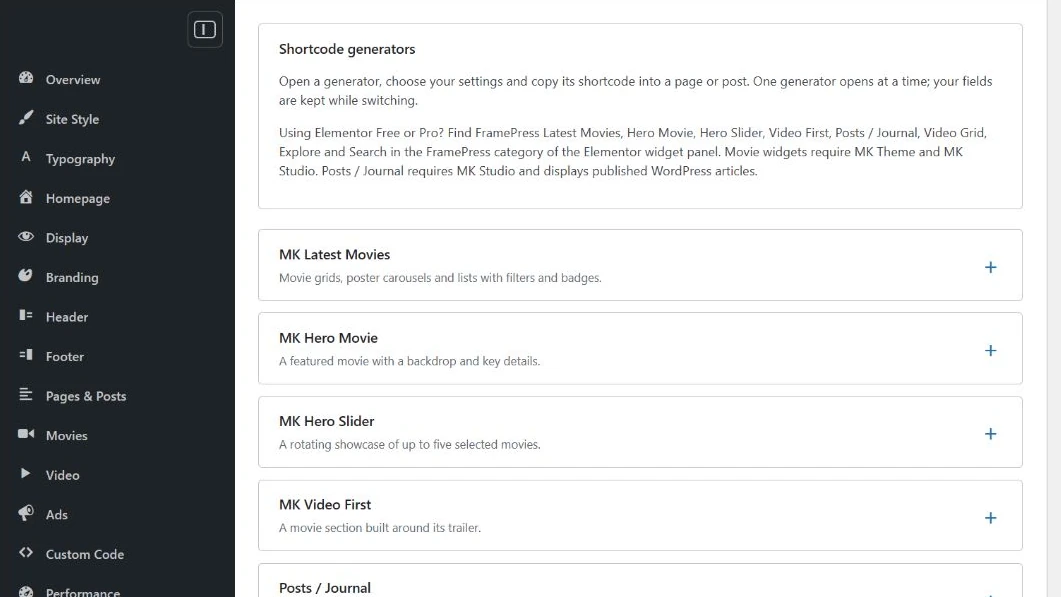
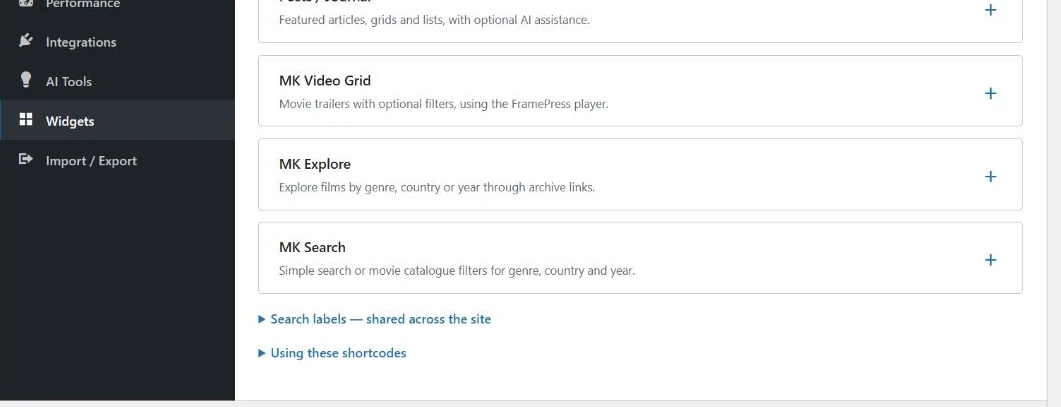
Generate, copy and place a shortcode
- Open a generator and expand its setting groups. Change the controls you need. Generated shortcode updates automatically; there is no separate Generate button for this manual workflow.
- In Posts / Journal, MK Video Grid, MK Explore or MK Search, optionally choose Preview section. This is a local component preview. The first four generators provide Copy shortcode, without this preview button.
- Click Copy shortcode. If your browser prevents clipboard access, select the text in Generated shortcode and copy it manually.
- Open Pages → Add New or edit an existing page. In the block editor add a Shortcode block and paste the copied text into it. In the Classic Editor, paste it into the page content.
- Use the page’s Preview to check the result at desktop and phone widths. Save or update the page when you want to make your changes available to visitors.
For an Elementor page, you can paste a generated shortcode into Elementor’s Shortcode widget. To use FramePress’s own native Elementor controls instead, follow section B. These are two separate editing workflows.
The page, sidebar or Homepage Shortcode section supplies the available width, fonts and surrounding layout. A component preview cannot show the whole page. Generated shortcodes usually omit settings that still have their default values; a short shortcode can therefore produce a complete section.
Edit an existing shortcode
Posts / Journal, MK Video Grid, MK Explore and MK Search have Load existing shortcode. Expand it, paste one complete shortcode for that component, then click Load into generator. Wait for the confirmation, review the fields and preview the result. Copy the new shortcode back into your page and save the page separately. Unsupported attributes, duplicate attributes and invalid values are rejected; loading a shortcode does not update any page automatically.
The first four generators do not have this importer. Recreate the desired settings in their controls when you need a new shortcode.
MK Latest Movies
Create a collection of movie cards, posters or a list. Use Latest movies for a section that changes as you publish movies, a taxonomy or custom field for a filtered selection, or Manual IDs for a curated collection.
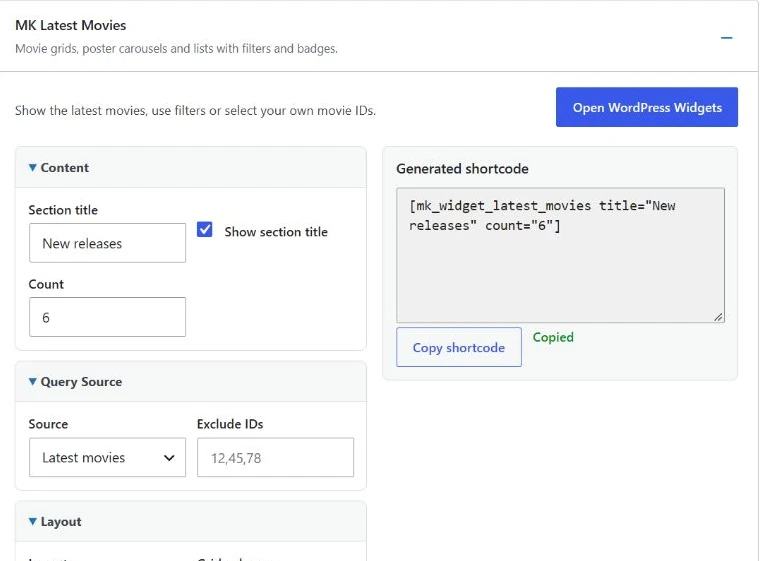
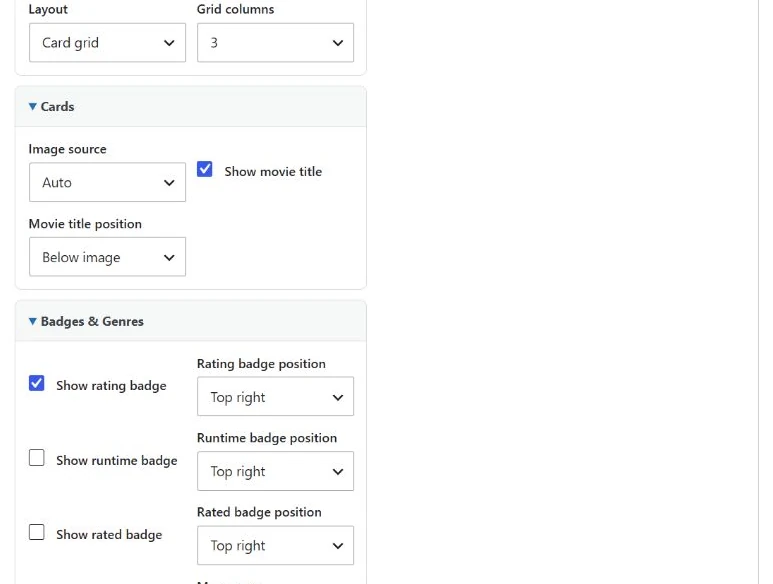
Controls
| Group / control | What to choose |
|---|---|
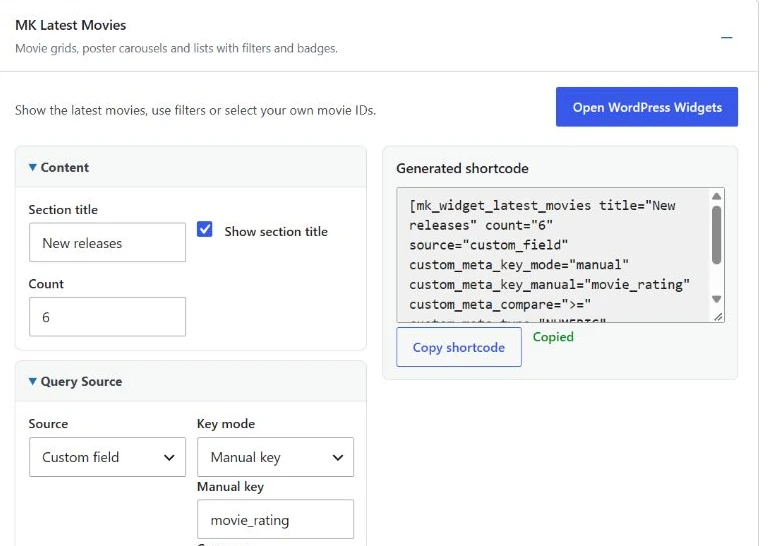
| Content: Section title; Show section title; Count | Set the heading, toggle its visibility and choose a Count from 1–24 for automatic selections. Count controls how many movies are displayed; it does not define their order. With MK Theme active, Manual IDs uses the list size instead of Count for Date, Title and Random. Keep your ID list to the size you want. Attributes: title, show_title, count. |
| Query Source: Source | Latest movies (latest), Taxonomy (taxonomy), Custom field (custom_field) or Manual IDs (manual_ids). Attribute: source. |
| Taxonomy; the term selector below it | Choose the movie taxonomy and an existing term. Genres, Directors, Writers, Actors, Countries, Languages, Production Companies, Keywords, Type, Status, TV Networks and Years are offered. Attributes: taxonomy_field, taxonomy_term; the term is stored as its slug. |
| Key mode; Field / Manual key | For Custom field, choose a known stored field or enter its metadata key. Attributes: custom_meta_key_mode, custom_meta_key, custom_meta_key_manual. |
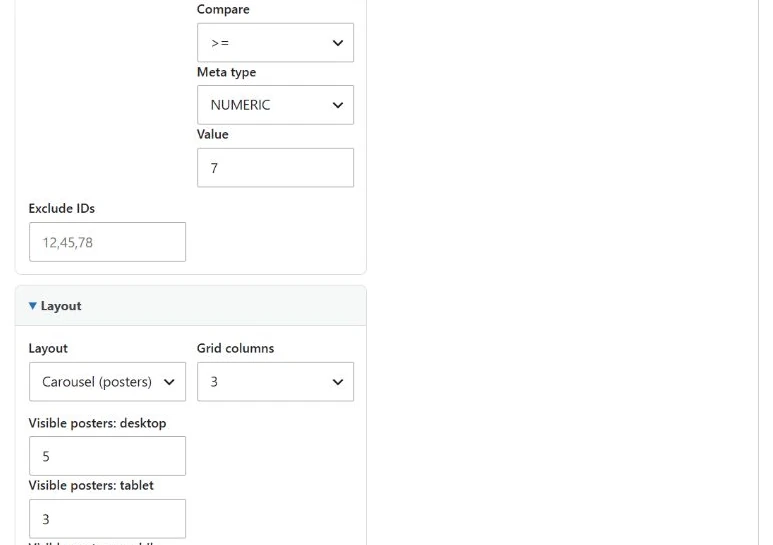
| Compare; Meta type; Value | Select the comparison (=, !=, >, >=, <, <=, LIKE, NOT LIKE, EXISTS, NOT EXISTS), choose CHAR, NUMERIC or DATE, and enter a value when the comparison needs one. Attributes: custom_meta_compare, custom_meta_type, custom_meta_value. EXISTS / NOT EXISTS test the key’s presence rather than its value. |
| Include IDs; Exclude IDs | Enter comma-separated WordPress movie IDs. Include IDs appears for Manual IDs. Exclude IDs removes unwanted movies from the selection. Attributes: include_ids, exclude_ids. |
| Layout; Grid columns | Card grid (card-grid), Poster grid (poster-grid), Carousel (posters) (carousel) or List (list). Grid columns offers 2, 3, 4 or 5. Attributes: layout, columns. |
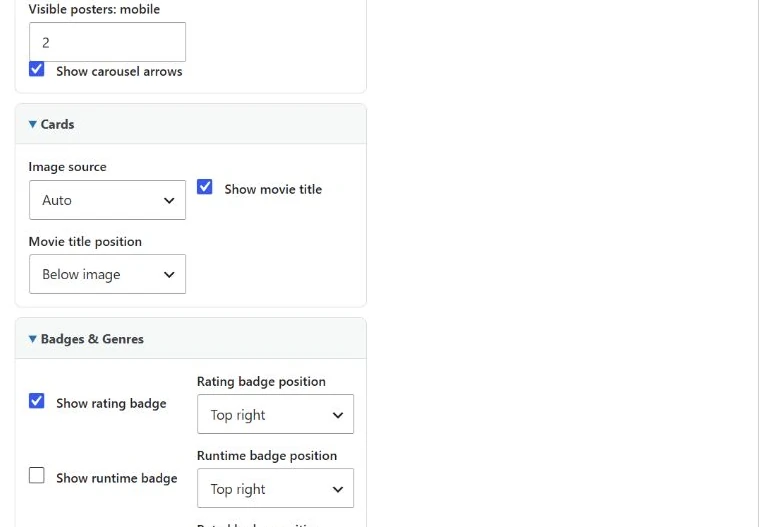
| Visible posters: desktop / tablet / mobile; Show carousel arrows | Carousel settings allow 1–8 desktop, 1–6 tablet and 1–3 mobile posters. Attributes: carousel_columns, carousel_tablet_columns, carousel_mobile_columns, carousel_arrows. |
| Image source | Auto, Poster, Backdrop or Featured image. Attribute: image_source. Check that the chosen artwork exists on your movies. |
| Show movie title; Movie title position | Toggle the movie name and choose Below image or Over image. Attributes: show_movie_title, title_position. |
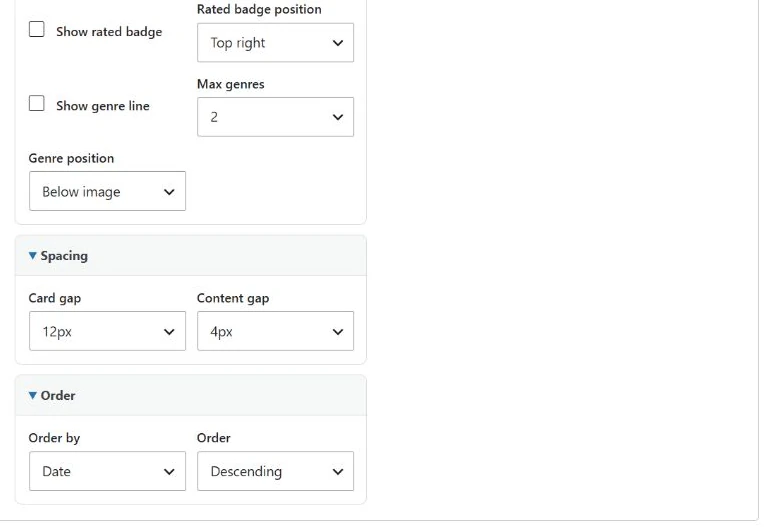
| Show rating badge; Show runtime badge; Show rated badge | Independently enable these badges. Each has its own Top right / Top left / Bottom right / Bottom left position. Attributes: show_badge_rating, rating_badge_position, show_badge_runtime, runtime_badge_position, show_badge_rated, rated_badge_position. Choose different corners when showing several badges. |
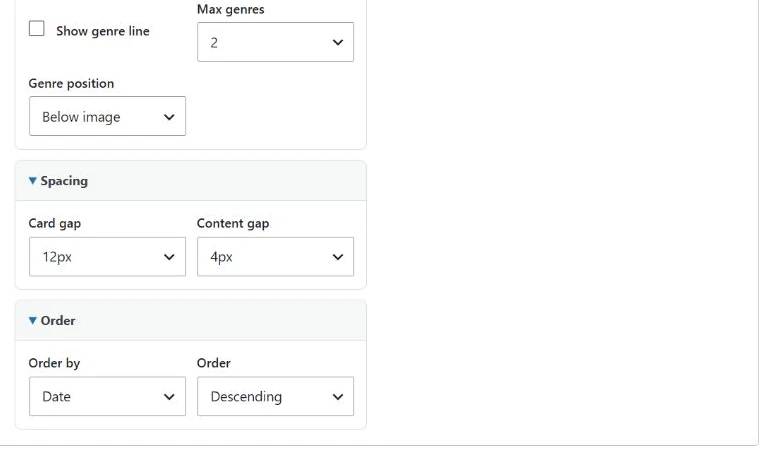
| Show genre line; Max genres; Genre position | Toggle genres, show up to 1–5 and place them Below image or Over image. Attributes: show_badge_genres, max_badge_genres, genre_position. |
| Card gap; Content gap | Choose the supplied spacing values. Card gap ranges from 0 to 80 px; Content gap from 0 to 40 px, using the offered steps. Attributes: card_gap, gap. |
| Order by; Order | Choose Date, Title, Random or Movie year. Attributes: orderby, order. With Manual IDs and MK Theme active, Date preserves the entered ID order; Title sorts by title and Random shuffles the selection. Title and Random do not preserve the entered ID order. These three choices do not limit the list to Count. When Movie year sorting is available, it sorts the list by year and then applies Count. Without movie-year sorting support, Movie year falls back to date sorting. |
Example: six latest movies
- Open MK Latest Movies. In Content, enter New releases and set Count to 6.
- Leave Source at Latest movies. Choose Card grid and 3 Grid columns.
- In Cards and Badges & Genres, review the image, title and badge choices. Leave the default rating badge enabled if your movies have ratings.
- Copy the shortcode and paste it into the page’s Shortcode block using the placement steps above.
[mk_widget_latest_movies title="New releases" count="6"]
The example above shows up to six matching published movies. For automatic selections, Count is a maximum, so a smaller collection produces fewer cards.
Example: a curated poster carousel with your own movie order (MK Theme active)
- Open MK Studio → Widgets and choose MK Latest Movies.
- Set Source to Manual IDs.
- Enter your WordPress movie IDs in Include IDs, separated by commas, in the order you want them displayed.
- Set Layout to Carousel (posters) and adjust Visible posters and Show carousel arrows if needed.
- Leave Order by at Date to preserve your entered ID order. Do not choose Title or Random when you want that order preserved.
- Set the number of movies by adding or removing IDs. In this MK Theme mode, Count does not shorten the Manual IDs list when Date is selected.
- Click Copy shortcode, paste it into a Shortcode block on your page, then preview and save the page.
The poster carousel is separate from Hero Slider and the movie archive layout. Elementor’s native Latest Movies widget has its own controls; these steps describe the MK Studio shortcode generator.
Without MK Theme: the standalone adapter uses a simpler renderer. It keeps valid manual IDs in the entered order and applies Count (1–24) to limit the list; Title and Random do not reorder this manual selection. The MK Theme carousel and sorting instructions above must not be treated as standalone behavior.
For a numeric rating filter, choose Custom field → Manual key, enter movie_rating, use >=, NUMERIC and value 7. This only works when that metadata key actually contains numeric ratings on your site. Selecting a known or manual key does not create or populate the field.
MK Hero Movie
Feature one movie with a large backdrop, poster and selected details. Use it for a leading film or a prominent recommendation.
Controls
| Group / control | What it changes |
|---|---|
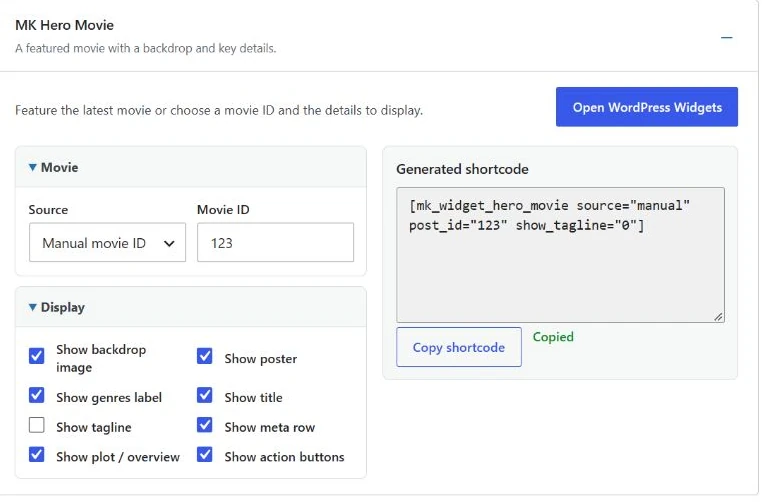
| Movie: Source; Movie ID | Choose Latest movie (latest) or Manual movie ID (manual). Manual selection reveals the ID field. Attributes: source, post_id. |
| Display: Show backdrop image; Show poster; Show genres label; Show title | Independently show these hero elements. Attributes: show_backdrop, show_poster, show_genres, show_title. |
| Show tagline; Show meta row; Show plot / overview; Show action buttons | Toggle the remaining movie details and actions. Attributes: show_tagline, show_meta, show_overview, show_actions. Content comes from the movie’s existing data. |
Example: feature a chosen movie
- Open MK Hero Movie and set Source to Manual movie ID.
- Find the movie’s WordPress ID: open its Edit screen from your collection’s movie list and read the number after
post=in the address. Use that ID, not its TMDb or IMDb ID. - Enter the Movie ID. In Display, choose the elements to show; for example, turn off Show tagline.
- Copy the shortcode and place it in a Shortcode block. Preview the page to check its artwork and available width.
[mk_widget_hero_movie source="manual" post_id="123" show_tagline="0"]
Replace 123 with your published movie’s ID. The result features that movie; it does not create its poster, plot or metadata. An unavailable manual choice does not provide a useful public hero. This generator has no movie-title picker or Elementor Style controls.
MK Hero Slider
Create a rotating hero showcase from up to five selected movies. This is a large featured-movie section, rather than a row of poster cards.

Controls
| Group / control | What to choose |
|---|---|
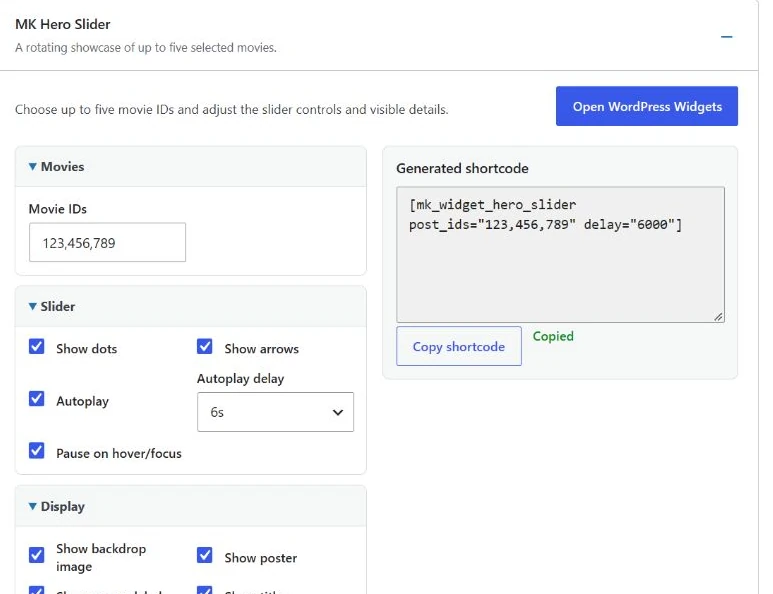
| Movies: Movie IDs | Enter up to five comma-separated WordPress movie IDs in the order you want. Attribute: post_ids. |
| Slider: Show dots; Show arrows; Autoplay | Choose the navigation and whether the slider advances automatically. Attributes: show_dots, show_arrows, autoplay. |
| Autoplay delay; Pause on hover/focus | Delay choices are 3s, 4s, 5s, 6s, 8s or 10s. The shortcode stores milliseconds, such as delay="6000". Attribute pause_on_hover controls pausing while hovered or focused. |
| Display: Show backdrop image; Show poster; Show genres label; Show title; Show tagline; Show meta row; Show plot / overview; Show action buttons | Choose the same visible hero elements for the slides. Attributes: show_backdrop, show_poster, show_genres, show_title, show_tagline, show_meta, show_overview, show_actions. |
Example: three featured movies
- Open MK Hero Slider. Enter three published movie IDs in Movie IDs.
- Expand Slider. Keep dots and arrows enabled, enable Autoplay and select 6s.
- Keep Pause on hover/focus enabled and review the Display toggles.
- Copy the shortcode, place it in the page and preview the full page before saving.
[mk_widget_hero_slider post_ids="123,456,789" delay="6000"]
Replace the IDs with your own. Duplicate or unavailable movies are skipped, and the slider uses at most five IDs. With only one usable movie, navigation and autoplay are unnecessary and not shown. Reduced-motion preferences disable automatic playback. The Studio generator uses a comma-separated ID field; the draggable movie rows and responsive Style controls belong to the native Elementor widget.
MK Video First
Feature a movie around its existing trailer. Choose a movie, then choose how its video opens. The rest of the Video First presentation follows the shared movie settings.
Controls
| Control | What to choose |
|---|---|
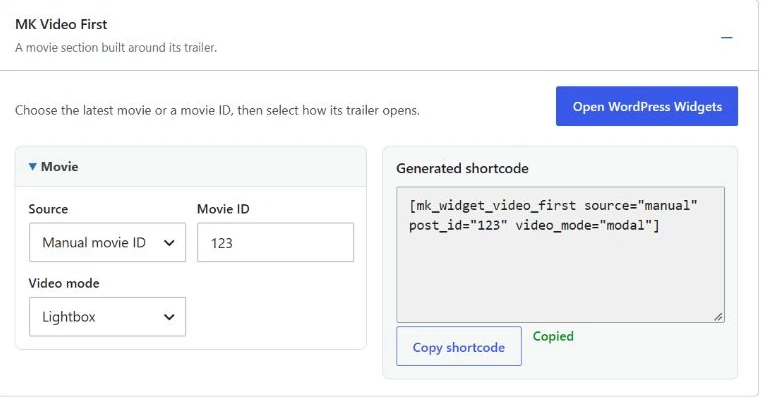
| Source; Movie ID | Latest movie (latest) or Manual movie ID (manual), with post_id for the manual choice. |
| Video mode | Inherit (inherit) follows existing movie/video behavior; Inline (inline) opens the player in the section; Lightbox (modal) opens an overlay; External (external) opens the video outside the embedded player. Attribute: video_mode. |
Example: a chosen trailer in a lightbox
- Confirm that your published movie has a supported trailer or video source.
- Open MK Video First, choose Manual movie ID and enter its WordPress movie ID.
- Set Video mode to Lightbox.
- Copy the shortcode, paste it into the page and check the real page’s Play and Close behavior.
[mk_widget_video_first source="manual" post_id="123" video_mode="modal"]
Replace 123 with your movie’s ID. Provider and availability rules still apply: choosing Inline or Lightbox cannot make an unsupported video embeddable. A movie without a trailer may display its hero artwork without a Play button. The player loads on Play; closing it removes the player. Shared titles, details, badges and colors are configured under MK Studio → Movies → Video First, rather than in this generator. YT Sheet Grid is not required.
Posts / Journal
Display ordinary WordPress articles as a featured story, grid or list. Choose a category for an automatically updated section, or select specific articles in a deliberate order.
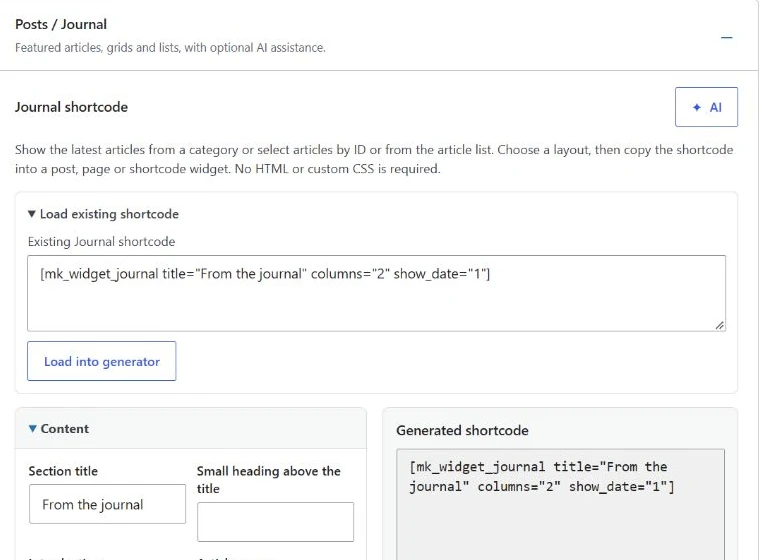
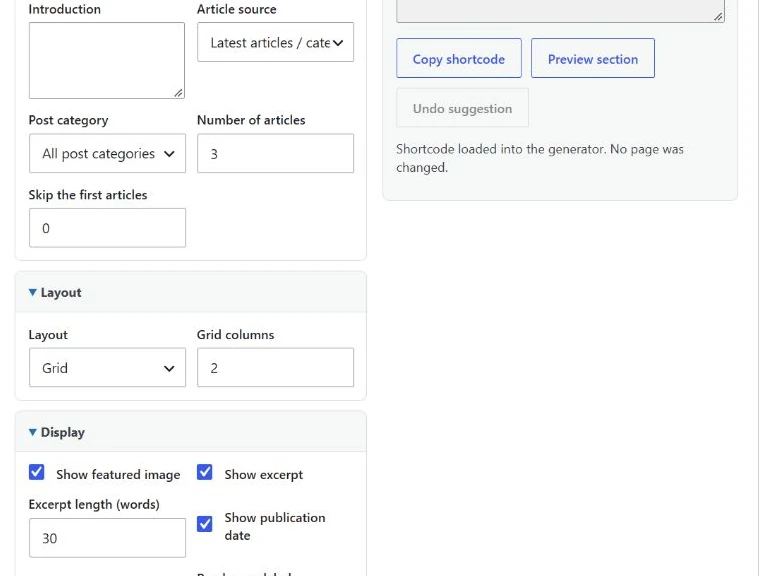
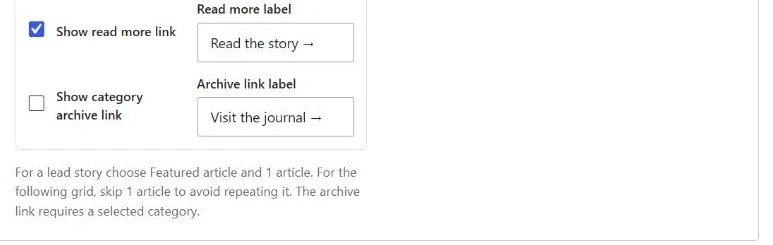
Controls
| Control | What it changes |
|---|---|
| Section title | Heading for this article section. Maximum 160 characters. Attribute: title. |
| Small heading above the title | Optional short line above the heading. Maximum 160 characters. Attribute: kicker. |
| Introduction | Optional introductory text. Maximum 1000 characters. Attribute: intro. |
| Article source | Latest articles / category updates as you publish posts; Selected articles uses your chosen post IDs. Attribute: source. |
| Article IDs in display order | Up to 24 published post IDs, comma-separated, in display order. Used with Selected articles. Maximum 300 characters. Attribute: include_ids. |
| Post category | Choose an existing ordinary WordPress post category, or All post categories. Attribute: category. |
| Number of articles | Maximum articles for latest/category selection. Range: 1–24; default 3. Attribute: count. |
| Skip the first articles | Skip this many recent matching articles; useful when a lead story appears above this section. Range: 0–1000; default 0. Attribute: offset. |
| Layout | Featured article uses a lead-story presentation; set count to 1 or select one manual article for a single story. Grid and List show the selected articles. Attribute: layout. |
| Grid columns | Column count for Grid. Range: 1–4; default 3. Attribute: columns. |
| Show featured image | Display the article’s featured image. Default: on. Attribute: show_image. |
| Show excerpt | Display an excerpt. Default: on. Attribute: show_excerpt. |
| Excerpt length (words) | Maximum excerpt length in words. Range: 0–80; default 30. Attribute: excerpt_length. |
| Show publication date | Display the publication date. Default: off. Attribute: show_date. |
| Show read more link | Display the article link. Default: on. Attribute: show_read_more. |
| Read more label | Text for that read-more link. Maximum 160 characters. Attribute: read_more_text. |
| Show category archive link | Display a category archive link; requires a selected category and latest/category source. Default: off. Attribute: show_archive_link. |
| Archive link label | Text for that category archive link. Maximum 160 characters. Attribute: archive_link_text. |
For Selected articles, enter Article IDs in display order or use Search published articles → Article list → Add article. The list contains up to the 200 latest published articles. Enter older IDs directly when needed. You can select up to 24 articles and reorder them by editing the comma-separated IDs. Manual selection ignores category, count and offset; its category archive controls are hidden.
Example: an article grid with dates
- Open Posts / Journal and enter From the journal as Section title.
- Leave Article source at Latest articles / category. Choose a Post category, or keep All post categories. Set Number of articles to 3 and Skip the first articles to 0.
- Choose Grid and set Grid columns to 2. In Display, enable Show publication date and review the image, excerpt and read-more controls.
- Choose Preview section, then Copy shortcode. Place it in the page’s Shortcode block and preview that page.
[mk_widget_journal title="From the journal" columns="2" show_date="1"]
This displays up to three recent published articles with dates. For a lead story followed by another section, use Featured article and count 1 for the first section, then Skip the first articles = 1 in the following latest/category section. Featured article changes the presentation; choose count 1, or select just one manual article, when you want a single story. Grid columns applies to Grid. The category archive link requires a selected category. Draft and private articles do not supply public cards. In MK Studio 0.7.306, Journal cards include only ordinary published posts without a password. Password-protected, draft and private posts are excluded in Latest, Category and Selected articles modes, even when the visitor has already unlocked a protected post. In Selected articles, excluded IDs produce no card and the remaining allowed posts keep their selected order. In Latest and Category modes, the count and offset apply to eligible public posts.
The AI button is optional assistance for suggesting these settings. Its panel includes Section description, Language for new labels, Generate suggestion, local category search and a review of the proposed fields. Review the preview and Details and settings, then Apply to generator only if you accept the suggestion. Copying and saving the page remain separate. Undo suggestion restores the earlier generator settings when subsequent manual edits have not made undo unsafe. Generate suggestion sends a provider request and requires configured AI; the manual generator and local previews work without it. AI generation is not required for this example.
MK Video Grid
Build a responsive trailer grid from videos already attached to your MovieKit movies. Use it when visitors should choose between several trailers and optionally filter that selection.
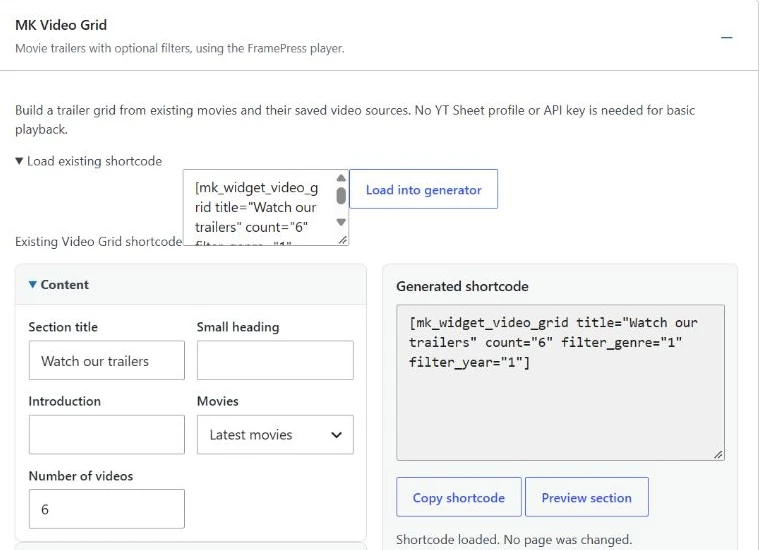

Controls
| Control | What it changes |
|---|---|
| Section title | Heading for the trailer section. Maximum 300 characters. Attribute: title. |
| Small heading | Optional short heading above the title. Maximum 300 characters. Attribute: kicker. |
| Introduction | Optional introduction. Maximum 300 characters. Attribute: intro. |
| Movies | Latest movies, Selected movies (manual_ids), or Movies from a taxonomy. Attribute: source. |
| Selected movie IDs (in order) | Up to 48 comma-separated movie IDs, in selection order, for Selected movies. Attribute: include_ids. |
| Source taxonomy | Genre, country or year taxonomy for the source selection. Attribute: taxonomy. |
| Source term slug | An existing source term’s slug; a local term picker is also available. Maximum 300 characters. Attribute: term. |
| Number of videos | Maximum playable video cards to display. Range: 1–48; default 12. Attribute: count. |
| Desktop columns | Cards per row on desktop. Range: 1–6; default 3. Attribute: columns. |
| Tablet columns | Cards per row on tablets. Range: 1–4; default 2. Attribute: tablet_columns. |
| Mobile columns | Cards per row on phones. Range: 1–2; default 1. Attribute: mobile_columns. |
| Gap (px) | Space between cards in pixels. Range: 0–48; default 12. Attribute: gap. |
| Image source | Auto tries backdrop, featured image and poster, in that order. A specific image source restricts the choice. Attribute: image_source. |
| Image ratio | Card image proportions. Attribute: ratio. |
| Image fit | Crop to fill (cover) fills the frame; Show whole image (contain) preserves the whole image. Attribute: image_fit. |
| Show play icon | Display the play icon on the card. Default: on. Attribute: show_play. |
| Show movie title | Display the movie title. Default: on. Attribute: show_title. |
| Show genres | Display movie genres. Default: on. Attribute: show_genre. |
| Show countries | Display countries. Default: off. Attribute: show_country. |
| Show film year | Display the film year. Default: on. Attribute: show_year. |
| Show link to movie | Display the link to the movie page. Default: on. Attribute: show_link. |
| Movie link label | Text for the movie-page link. Maximum 300 characters. Attribute: link_text. |
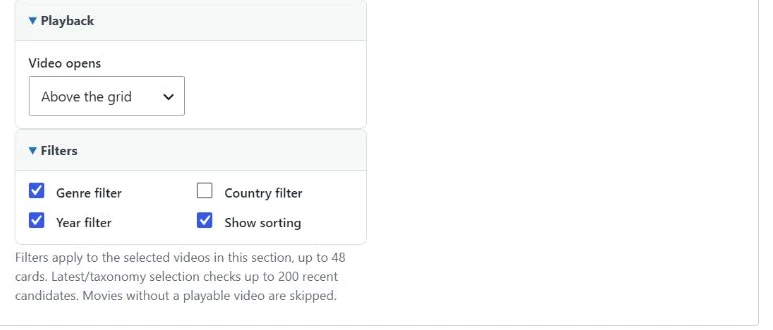
| Video opens | Above the grid (inline) or In a lightbox (modal). Existing source/provider rules still apply. Attribute: video_mode. |
| Genre filter | Enable genre filtering within this section. Default: off. Attribute: filter_genre. |
| Country filter | Enable country filtering within this section. Default: off. Attribute: filter_country. |
| Year filter | Enable year filtering within this section. Default: off. Attribute: filter_year. |
| Show sorting | Display the visitor’s sorting control. Default: on. Attribute: show_sort. |
For Selected movies, enter movie IDs in order or use Find a movie to add to the selection → Find movies → Add. Edit the ID list to reorder or remove them. For Movies from a taxonomy, choose Source taxonomy and an existing source term, using its slug or the Choose a source term selector.
Example: six trailers with genre and year filters
- Open MK Video Grid. Set Section title to Watch our trailers, leave Movies at Latest movies and set Number of videos to 6.
- In Layout, review desktop/tablet/mobile columns and choose Image ratio 16:9.
- In Playback, keep Above the grid, or select In a lightbox for an overlay.
- In Filters, enable Genre filter and Year filter. Keep Show sorting enabled if useful.
- Choose Preview section, then Copy shortcode. Place it on the page and test that page’s filtering and playback.
[mk_widget_video_grid title="Watch our trailers" count="6" filter_genre="1" filter_year="1"]
Expect up to six playable movie videos. The filters act on the cards selected for this section, not the entire movie catalogue. A section is limited to 48 cards. Latest/taxonomy selection checks up to 200 recent candidate movies; movies without a playable video are skipped. You may therefore see fewer cards than the requested count.
The local preview is static and disables playback. Check a real page to verify Play, Close and the chosen video source. The grid uses the existing FramePress player; basic playback needs no YT Sheet source, profile, JSON feed or API key. Supported taxonomy labels can link to their archives. A missing or unsupported trailer must be corrected on the movie, rather than through grid display settings.
MK Explore
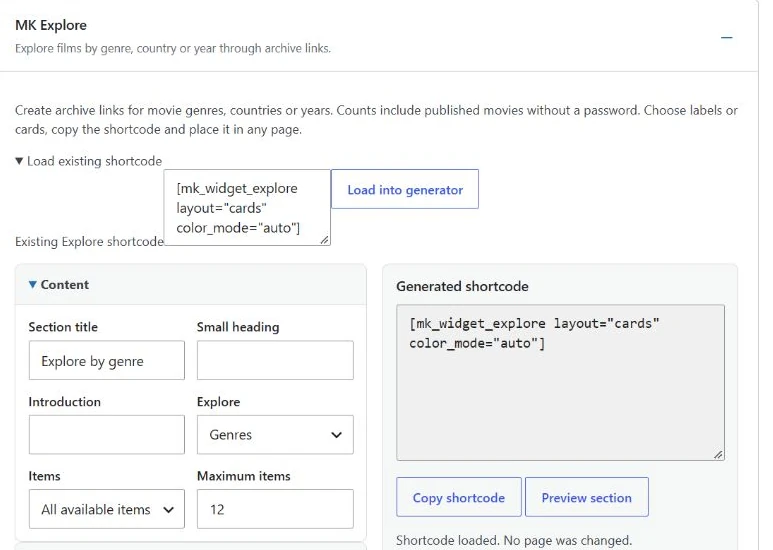
Help visitors browse your movie catalogue through genre, country or year archive links. Choose compact labels or a card layout, optionally with public movie counts and per-item colors.
Controls
| Control | What it changes |
|---|---|
| Section title | Section heading. Maximum 300 characters. Attribute: title. |
| Small heading | Optional short heading above the title. Maximum 300 characters. Attribute: kicker. |
| Introduction | Optional introduction. Maximum 300 characters. Attribute: intro. |
| Explore | Browse Genres, Countries or Years. Attribute: taxonomy. |
| Items | All available items or Selected items (selected_terms). Attribute: source. |
| Selected term IDs (in order) | Up to 48 existing term IDs in your chosen order; used for Selected items. Attribute: include_ids. |
| Maximum items | Maximum archive links to display. Range: 1–48; default 12. Attribute: count. |
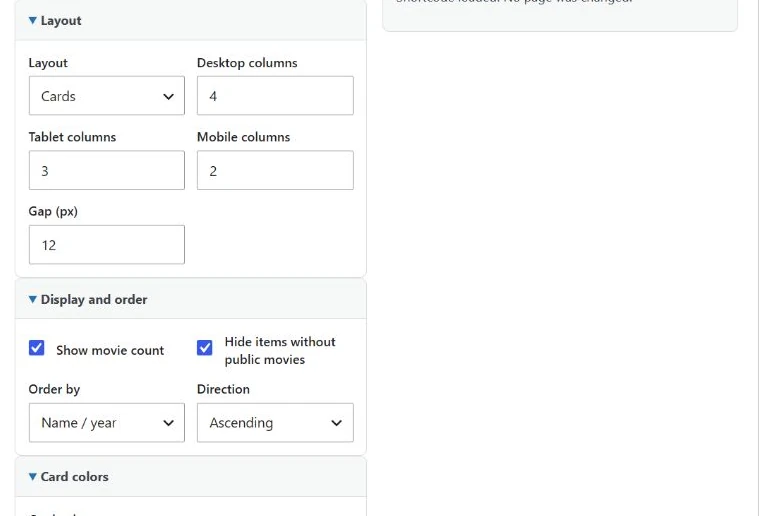
| Layout | Compact labels (chips) wrap automatically; Cards use the column settings. Attribute: layout. |
| Desktop columns | Card columns on desktop. Range: 1–6; default 4. Attribute: columns. |
| Tablet columns | Card columns on tablets. Range: 1–4; default 3. Attribute: tablet_columns. |
| Mobile columns | Card columns on phones. Range: 1–2; default 2. Attribute: mobile_columns. |
| Gap (px) | Space between items in pixels. Range: 0–48; default 12. Attribute: gap. |
| Show movie count | Show the count of published, non-password-protected movies for each term. Default: on. Attribute: show_count. |
| Hide items without public movies | Hide terms that have no public movies. Default: on. Attribute: hide_empty. |
| Order by | Name / year, Movie count, or Selection order. Selection order is for Selected items. Attribute: orderby. |
| Direction | Ascending or Descending. Attribute: order. |
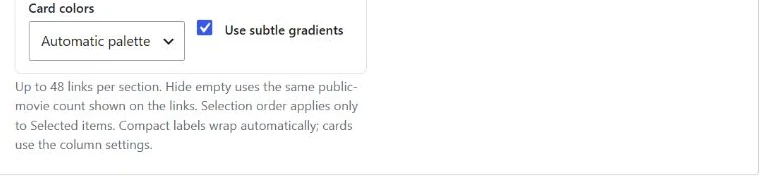
| Card colors | Single color / theme default (uniform), Automatic palette (auto), or Colors by item (manual). Attribute: color_mode. |
| Item colors (slug:#RRGGBB) | Comma-separated slug:#RRGGBB values, up to 48 entries. Shown for Colors by item. Maximum 3000 characters. Attribute: item_colors. |
| Use subtle gradients | Use subtle gradients for the item colors. Default: on. Attribute: color_gradient. |
For Selected items, enter term IDs in display order or use Find an item by name → Find items → Add. Remove an item with its Remove button, or edit the ID list. Switching Explore to a different taxonomy clears that selection. These are taxonomy term IDs, not movie IDs. Selection order only applies to Selected items. Compact labels wrap automatically; column controls apply to Cards.
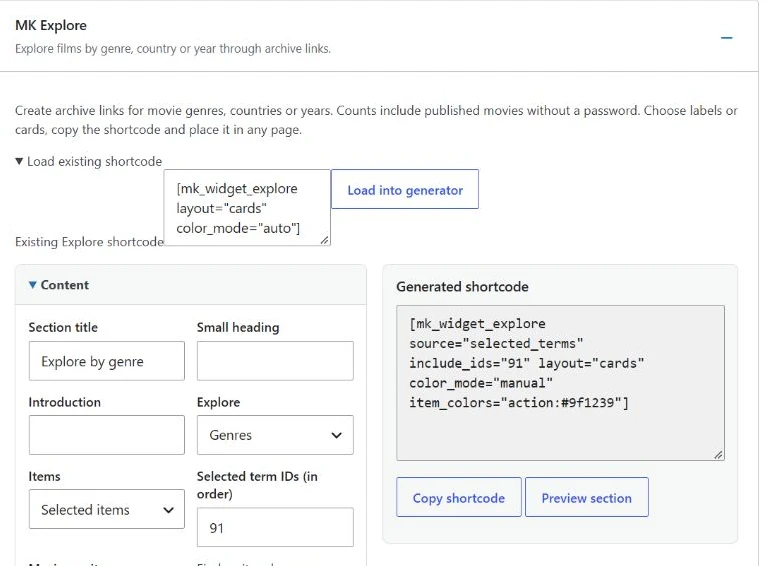

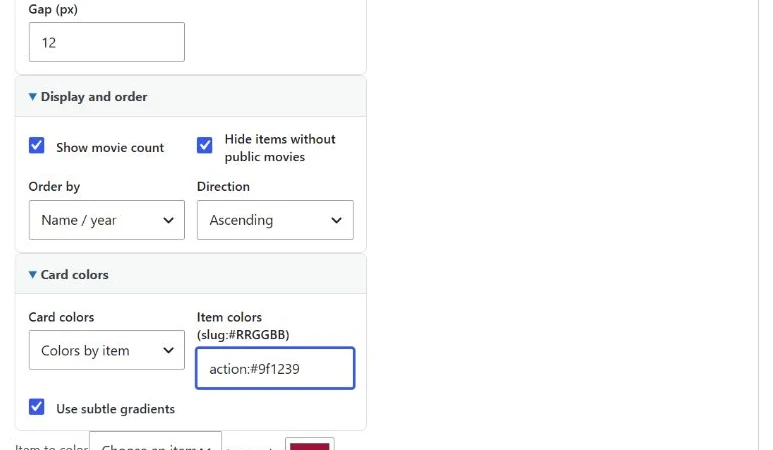

Choose Colors by item to reveal Item colors and the Item to color / Item color / Set item color helper. A map such as action:#9f1239,comedy:#9a3412 uses existing term slugs and six-digit hex colors. Colors follow slugs, not card positions. Unassigned items use the automatic palette; text contrast is chosen automatically. Use subtle gradients can be switched off.
Example: colorful genre cards
- Open MK Explore. Leave Explore at Genres and Items at All available items.
- Choose Cards in Layout and review the desktop/tablet/mobile columns.
- Keep Show movie count and Hide items without public movies enabled. Review Order by and Direction.
- Set Card colors to Automatic palette. Preview, copy and place the shortcode on the page.
[mk_widget_explore layout="cards" color_mode="auto"]
The result links to up to 12 matching genre archives by default. Counts include published movies without a password. Hide items without public movies uses the same public-movie count; terms used only by drafts do not become public cards. A section is limited to 48 links. If it is empty, check the taxonomy, movie publication status and hide-empty setting. Preview disables archive links; use the actual page to follow them. Explore browses archives and does not play trailers.
MK Search
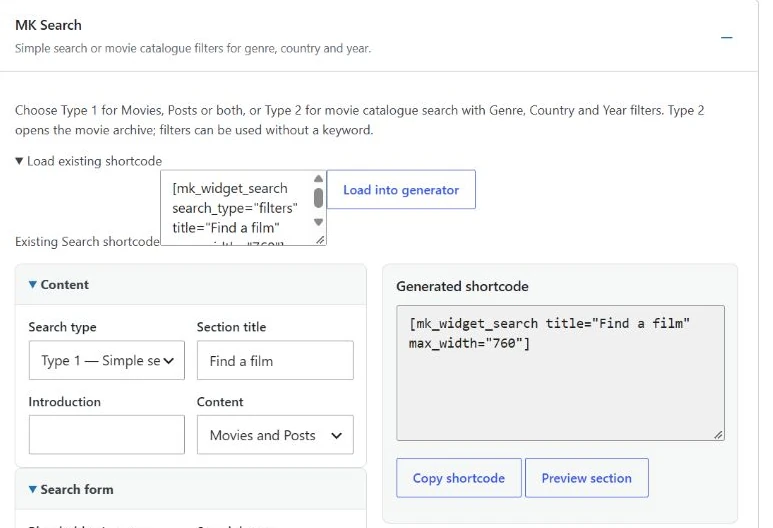
Choose Type 1 — Simple search for Movies, Posts or both. Choose Type 2 — Movie filters for a movie catalogue panel with keyword, Genre, Country and Year fields.
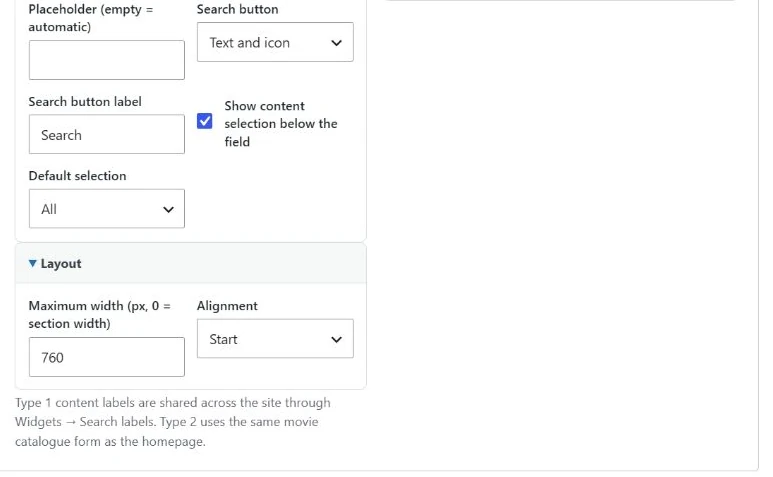
Controls
| Control | What it changes |
|---|---|
| Search type | Type 1 — Simple search (simple) or Type 2 — Movie filters (filters). Attribute: search_type. |
| Section title | Optional section heading. Maximum 300 characters. Attribute: title. |
| Introduction | Optional introduction. Maximum 300 characters. Attribute: intro. |
| Content | Type 1: Movies and Posts (both), Movies or Posts. Attribute: content. |
| Placeholder (empty = automatic) | Leave empty for text appropriate to the selected search type and content, or enter custom text. Maximum 300 characters. Attribute: placeholder. |
| Search button | Type 1: Text and icon, Icon only, or No visible button (Enter). Attribute: button_mode. |
| Search button label | Search button text / accessible label. Maximum 80 characters. Attribute: button_label. |
| Show content selection below the field | Type 1: display the All / Movies / Posts choices when Content includes both. Default: on. Attribute: show_scope. |
| Default selection | Type 1: initial All, Movies or Posts selection; the displayed labels follow site-wide settings. Attribute: default_scope. |
| Maximum width (px, 0 = section width) | 0 uses the section’s available width; otherwise set a pixel maximum. Range: 0–2400; default 0. Attribute: max_width. |
| Alignment | Position the form at Start, Center or End. Attribute: alignment. |
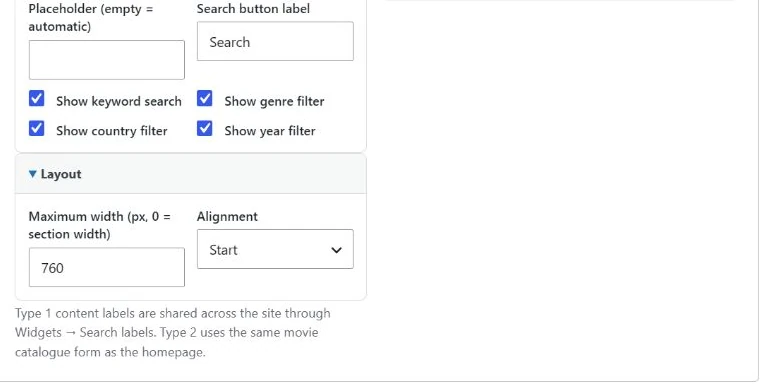
| Show keyword search | Type 2: display the keyword field. Default: on. Attribute: show_keyword. |
| Show genre filter | Type 2: display Genre. Default: on. Attribute: show_genre. |
| Show country filter | Type 2: display Country. Default: on. Attribute: show_country. |
| Show year filter | Type 2: display Year. Default: on. Attribute: show_year. |
Type 1 shows the Content, Search button, content selection and default-selection controls. Content selection applies when both Movies and Posts are available. If Content is only Movies or only Posts, its scope is fixed accordingly.
Type 2 hides those Type 1 scope/button-mode controls and shows the keyword, genre, country and year switches. Actor/director matching belongs to the keyword field in Type 2; this generator does not have separate actor or director selectors.
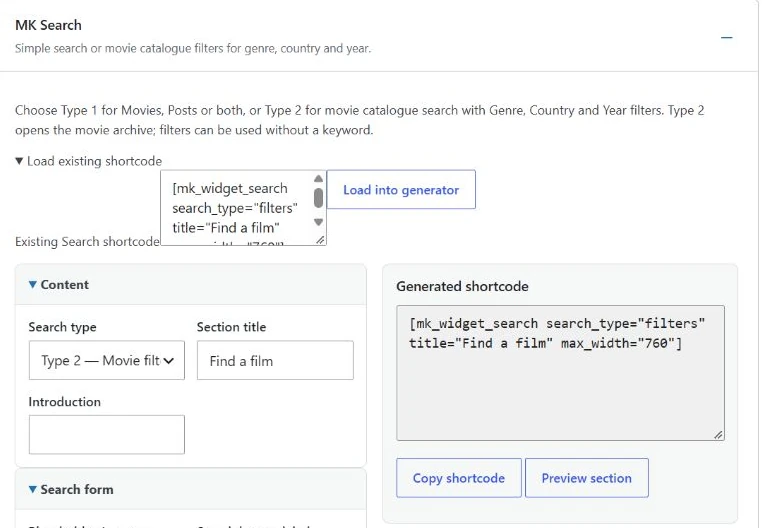
Example: movie filters
- Open MK Search and choose Type 2 — Movie filters.
- Enter Find a film as Section title. Leave Placeholder empty for its automatic text, or enter your own.
- In Search form, keep Show keyword search, Show genre filter, Show country filter and Show year filter enabled.
- In Layout, set Maximum width to 760 px and choose the desired Alignment.
- Preview the form, copy the shortcode and place it on the page. Submit a search on that page to verify the movie archive results.
[mk_widget_search search_type="filters" title="Find a film" max_width="760"]
Filters combine and can be submitted without a keyword. Type 2 keywords match movie text and actor/director names. Type 1 searches post titles, excerpts and content and opens the standard search results page. Shortcodes without search_type retain Type 1. Both scoped search types exclude unpublished and password-protected content.
Expand Search labels — shared across the site below the generators to change All label, Movies label or Posts label (up to 60 characters each), then choose Save search labels. These are saved site-wide labels, unlike the generator’s temporary fields. For example, Posts may be called Journal, Articles or Blog; the labels also apply to unified header search and results. Do not change them merely to customize one form.
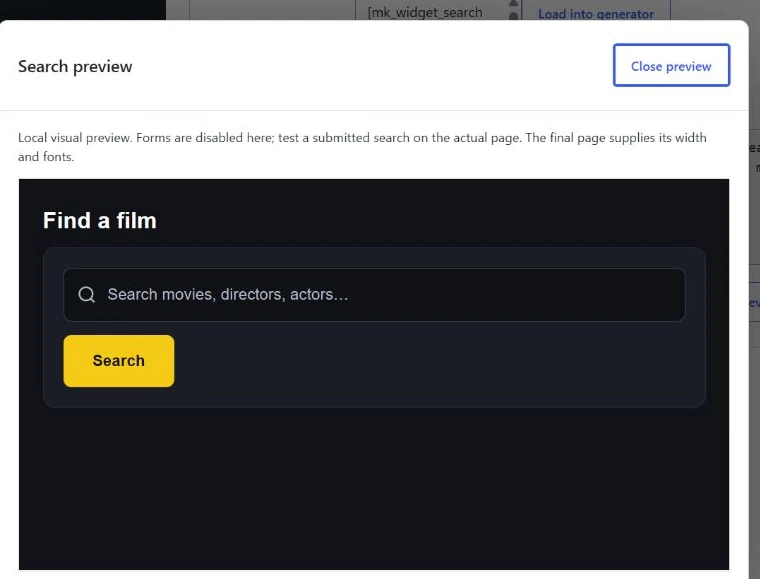
The local preview is a visual component preview with form submission disabled. The actual page supplies the final width and fonts and must be used to test submitted searches. Search uses local WordPress queries, without a model call, feed or new Cron job. See Search types and other placements for the existing sidebar, homepage and header instructions.
Placement and width
Use native WordPress widgets under Appearance → Widgets for a widget area, or place a shortcode in page content or a Homepage Shortcode section. Available width comes from that placement. If a section looks narrower than expected, check its page/container or widget-area width before changing the generator’s settings.
MK Search
Type 1 requires MK Theme 0.3.264 or later and MK Studio 0.7.296 or later.
Type 2 and native Elementor Search require MK Theme 0.3.272 and MK Studio
0.7.304. Documentation revision: 2026-10-10.
Open MK Studio > Widgets > MK Search. Select Type 1 — Simple search, then
choose Movies, WordPress Posts, or both.
Set a title, introduction, placeholder, search button and maximum width.
Enable the small content buttons if visitors should select All, Movies or Posts.
Preview the section locally, then copy the shortcode into a Shortcode block.
Submitting with Enter or the search button opens the standard search results
page. Results retain the search term, selected content and pagination.
Posts are ordinary WordPress Posts. The site-wide label settings under Widgets
let you call them Journal, Articles or Blog. These labels also apply to the
unified header and results. Search covers title, excerpt and post content;
Type 1 does not search actor/director fields.
Select Type 2 — Movie filters for the homepage-style movie catalogue
panel. Enable keyword, Genre, Country and Year fields as needed. Set the title,
introduction, placeholder, button label, maximum width and alignment. Taxonomy
options populate automatically. Filters combine and can be submitted without
a keyword; results open the movie archive. Keyword searches movie text and
actor/director names in this mode. The homepage filter section uses the same
renderer while retaining its existing visibility settings.
Use [mk_widget_search search_type="filters"] for Type 2. Existing shortcodes
without search_type retain Type 1. Both types use published, unprotected content.
In Elementor Free or Pro, drag FramePress Search from the FramePress
category and select Content > Search type. Style controls cover the field,
button and content choices; Type 2 also provides panel/filter colors, spacing
and corners. Mobile filters stack vertically. See FramePress widgets in Elementor.
For a sidebar, add the native MK Search widget under Appearance > Widgets.
Choose Icon only for a compact button, a short placeholder such as Search,
and width 0 to use the widget area’s available width. A page can select its own
sidebar position and widget area through the existing MK layout overrides.
Forms in the main content and sidebar work independently and open the same
search results page. The source page’s sidebar is not copied to results.
Homepage sections also offer MK Search. The Header settings offer Unified
search or the existing legacy mode. Existing header configurations keep their
legacy behavior until the owner explicitly chooses the unified mode.
Search uses local WordPress queries. There are no new API calls, feeds, cron
jobs or results requested while typing. Unpublished/password-protected content
is excluded from the scoped unified results. YT Sheet is optional.
B. Native Elementor Widgets
FramePress widgets in Elementor
Reference: MK Studio 0.7.305 / MK Theme 0.3.273. Native eight-widget support was included in Studio 0.7.304 / Theme 0.3.272.
Activate MK Studio and Elementor Free or Pro. Pro is optional. Open a page
with Elementor, find the FramePress category and drag one of eight native
widgets into your layout. Movie widgets need MK Theme and published MovieKit
movies. Explore needs movie taxonomies; Search needs MK Theme and MovieKit
for movie search. Posts / Journal uses published WordPress Posts and MK Studio.
FramePress Latest Movies provides card/poster grids, a list and a poster
carousel. Choose latest movies, taxonomy/custom-field filters or manual IDs;
set exclusions, sorting, count, image source, titles, badges and spacing.
Carousel columns can differ on desktop, tablet and mobile.
FramePress Hero Movie features the latest movie or a chosen movie. Search
the 200 most recent published titles, or enter a Movie ID for an older movie.
Toggle backdrop, poster, genres, title, tagline, metadata, plot and actions.
The Style tab controls colors, responsive minimum height and content padding.
FramePress Hero Slider accepts up to five movie slides. Choose each movie
by title or ID and drag rows to reorder them. Alternatively enter a list of
comma-separated IDs. Duplicates and unavailable movies are skipped. Configure
arrows, dots, autoplay, its 2000–15000 ms interval and pause on hover/focus.
With a single movie there is no navigation or autoplay. Reduced-motion
preferences disable automatic playback. Hero content and Style controls are
the same as Hero Movie; the slider fits the Elementor container.
FramePress Video First features the selected movie’s existing trailer.
Choose the latest movie or search by title/enter its ID. Video mode can inherit
movie settings, play Inline, open in a Lightbox or open the external video.
Provider/availability rules still apply. The video loads when Play is clicked;
closing removes the player. Starting another player closes the previous one.
Title, details, badges and colors follow MK Studio → Movies → Video First.
Elementor Style provides responsive hero height and corner radius. Height
applies before playback; Inline video uses the theme’s player proportions.
An invalid manual choice leaves the public widget empty and shows a hint in
the editor. A Video First movie without a trailer can still show its hero
image; it has no Play button. YT Sheet Grid is not required for these widgets.
FramePress Posts / Journal provides a featured article, grid or list.
Choose latest articles, a category or manual articles. Select names from the
searchable list or enter comma-separated post IDs such as 11,54,88 to control
the order. It uses published ordinary WordPress Posts; unavailable choices do
not fall back to unrelated articles. Studio and the classic Journal widget
support the same selection. Configure count, excerpts, images, dates and layout.
FramePress Video Grid displays existing movie trailers. Choose latest,
selected movies or a movie taxonomy. Configure image source and proportions,
columns, gaps, content, genre filters, sorting and player above the grid or
in a lightbox. It uses the FramePress player and does not require YT Sheet.
Editor changes reinitialize controls and removed widgets release their players.
FramePress Explore links to movie genre, country or year archives. Use
all available terms or select names/IDs; selection order can follow your list.
Choose compact labels or cards, public movie counts, sorting, responsive columns
and spacing. In Style → Colors and corners → Card colors, choose the theme
default, Automatic palette or Colors by item. For manual colors add an item
and color row, or enter a slug/hex list such as action:#b91c1c,comedy:#9a3412.
Unassigned items use the stable palette. Gradients are optional and white/black
text contrast is automatic. Colors belong to this widget and follow item slugs.
FramePress Search has two types under Content → Search type.
Type 1 searches Movies, Posts or both, with optional All/Movies/Posts selection,
default scope, custom placeholder and text/icon/hidden button. Enter submits
even with a hidden button. Shared labels are set in MK Studio → Widgets →
Search labels. Type 1 searches post titles, excerpts and content.
Type 2 — Movie filters provides a movie catalogue panel like the homepage:
keyword, Genre, Country, Year and Search. Each field can be hidden. Filters
combine and can work without a keyword. Keyword also finds actor/director
names; results open the movie archive and preserve the selected filters.
Style controls include input/button colors and corners; Type 2 adds panel and
filter colors, labels, gap, padding and corners. On mobile filters stack.
Studio offers the same types; [mk_widget_search search_type="filters"]
creates Type 2. The homepage Movie Search / Filter shares its renderer.
Use Theme 0.3.272 and Studio 0.7.304 together, particularly for Video First
asset and player support. Existing saved content, Studio settings, shortcodes
and classic WordPress widgets remain available. Elementor editor changes
initialize the widget controls again; save the page normally to publish them.