MK SYSTEM / DOCUMENTATION
YT Sheet Settings
YT Sheet settings define your default feed and player, provider credentials and optional source-file behavior.
Location: WordPress admin → YT Sheet → Settings. Basic Settings controls the default feed and player. Advanced Settings holds provider credentials and the optional Source File field. Use Save Settings after changing either tab.
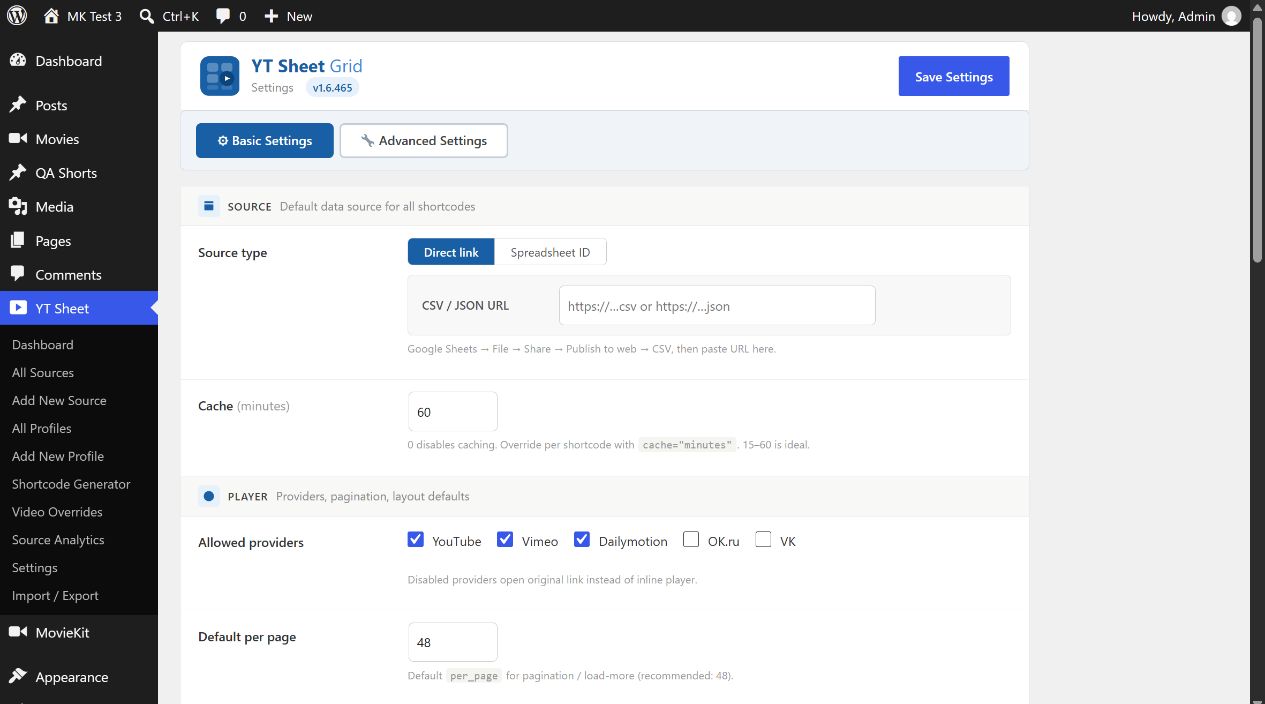
Default source
The Source card supplies a default to shortcodes that do not select a source themselves. It is separate from All Sources, where reusable, built datasets are managed.
| Control | What to enter | Effect |
|---|---|---|
| Source type → Direct link / CSV / JSON URL | A public HTTP or HTTPS CSV or JSON feed URL | Uses the URL as the default feed. For Google Sheets, publish the intended sheet to the web as CSV, then use its published URL. |
| Source type → Spreadsheet ID | The ID from a Google Sheets URL | Builds the default Google Sheets CSV URL from the ID and tab selector. This UI tab changes which inputs are shown; it is not a separate save button. |
| Sheet (tab) name; GID (optional) | Tab name or numeric GID | Selects the sheet tab in ID mode. The generated Preview URL lets you inspect the address before using it. |
| Cache (minutes) | 0 or a positive number; initial value 60 | Sets the default feed cache lifetime. 0 disables caching. A shortcode can override it with cache="minutes". |
When changing between Direct link and Spreadsheet ID, clear the unused fields before saving. The source URL builder uses a nonempty direct link first, even if a Spreadsheet ID is also saved.
Player and layout defaults
| Control | Initial value | Effect |
|---|---|---|
| Allowed providers | YouTube, Vimeo, Dailymotion | Permits inline playback for selected providers. OK.ru and VK are available but initially off; a disabled provider opens its original link. |
| Default per page | 48 | Number of items shown per pagination or load-more page unless a shortcode supplies per_page. |
| Load-more step | 24 | Items added for each mode="loadmore" action unless the shortcode supplies step. |
| Scroll to player | Smart | Smart scrolls only when the player is outside the viewport; Center always centers it; None disables this scroll. |
| Row style on mobile | Pin player to top | Choose the mobile player position or keep the true desktop row behavior. |
| Player max width (px) | 0 | 0 leaves width unrestricted. A positive pixel value caps the player width. |
| Mobile jump button | On | Shows a floating button on mobile to return to the player. Position can be bottom right or left; Background and Text accept hex colors or can be left blank. |
| Legacy YourChannel CSS | Off | Loads wp-content/plugins/yourchannel/css/style.css only if that file exists; intended for sites retaining that legacy stylesheet. |
Sticky player
Enable is off initially. When enabled, the player floats in the selected corner after the visitor scrolls away. Set Position (four corners), Width (initially 400 px), Height (0 means automatic 16:9), Min screen (initially 768 px), and Margin (initially 16 px). A shortcode can override supported values, for example sticky="yes" sticky_width="420" sticky_pos="bl".
Advanced Settings: API credentials and Source File
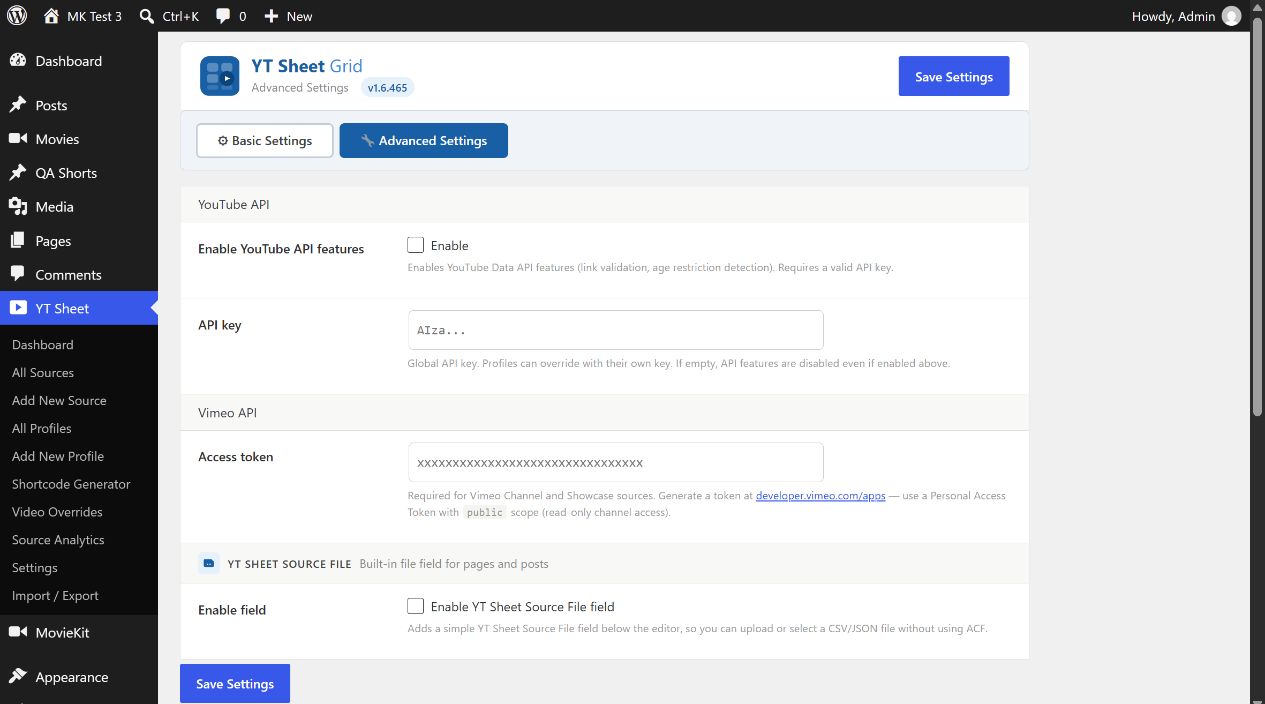
- For a YouTube Playlist or Channel source, follow Google’s YouTube Data API setup to enable the API and create a key. Supply it in API key, turn on Enable YouTube API features, and save. The same switch enables supported link validation and age restriction checks. A profile may have its own key.
- For a Vimeo Channel or Showcase source, follow Vimeo’s token guide. Enter an Access token with access to public data, then save. The source editor reads this global token.
- Turn on Enable YT Sheet Source File field only if you want the built-in CSV/JSON file selector below post and page editors; this avoids needing ACF for that field.
Keep keys out of public pages and screenshots. After saving a key, build a Source that uses the provider to confirm the credentials work.
Cache tools and examples
Flush ALL YT Sheet cache clears plugin feed caches; Flush this feed clears the cache for the entered URL. These buttons act immediately and are separate from Save Settings. Use them when an updated feed remains stale. They do not replace the Build now / Rebuild action for a saved My Source dataset.
The examples at the bottom show default, load-more, pagination, saved profile and spreadsheet-ID shortcodes. Start with [yt-sheet] only after a default source is configured. For a reusable grid, follow Create your first video grid.