MK SYSTEM / DOCUMENTATION
YT Sheet Feed Source
A YT Sheet Feed Source builds a video dataset from a public CSV or JSON feed or a supported uploaded file.
Location: WordPress admin → YT Sheet → Add New Source → Source type → Feed Source. Use this type for a public CSV or JSON feed, or a supported file in the WordPress Media Library.
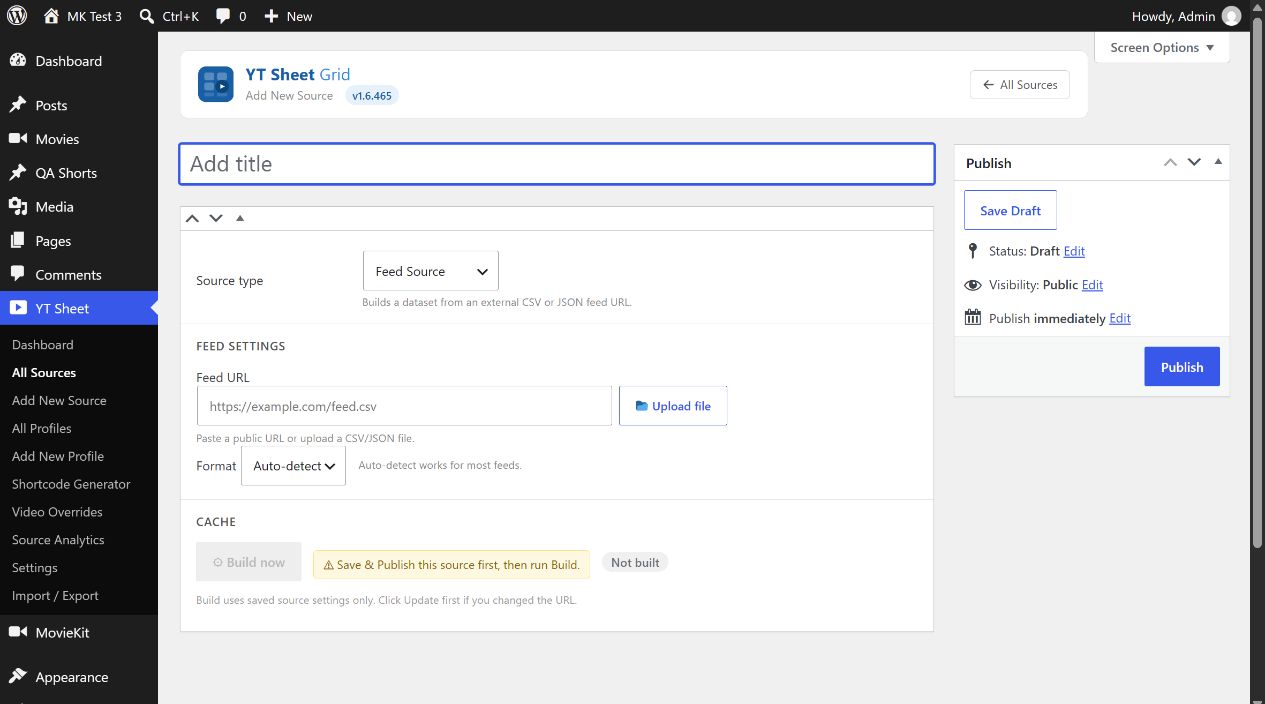
Create the source
- Give the Source a recognizable title. Select Feed Source.
- Paste a public Feed URL, or select Upload file to choose a CSV/JSON file from Media Library. Upload file fills the URL field with the selected file’s address. If Media Library has not loaded, save the Source and try the picker again.
- Set Format to Auto-detect (initial value), CSV or JSON. Choose an explicit format if detection fails. After a build, Last resolved format can show what the plugin parsed.
- Select Publish. Then select Build now. Verify the cache badge and item count. If the feed changes, select Update before Rebuild.
The WordPress server must be able to fetch the URL. A browser opening it on your computer does not prove the server can fetch it. For a Google Sheet, publish the intended tab to the web as CSV and use the published URL. Do not use a private spreadsheet editing URL as a feed.
Fields and cache controls
| Control | Purpose |
|---|---|
| Feed URL | The address of the CSV/JSON data. The file picker supplies a Media Library URL in the same field. |
| Format | Auto-detect, CSV or JSON parsing for this Source. |
| Build now / Rebuild | Creates or refreshes the saved dataset from the published Source configuration. |
| Clear cache | Removes this Source’s built dataset; build it again to display current rows. |
| Not built / Fresh; built time, items and size | Shows whether a cache file exists and summarizes the latest build. |
| Last error | Shows the stored error from a failed build, when present. Correct the URL or format and rebuild. |
A minimal feed should provide a video title and URL for each row; a thumbnail is strongly recommended. See Create your first video grid for the expected JSON field names and the Profile/shortcode steps.